
Saturday, October 25, 2008
What if electing a President were more like American Idol?
DISCLAIMER: I confess right out of the gate, I'm not a fan of either major-party candidate. As with many past elections, I won't be voting "for" someone in this election cycle -- my vote will be because I don't want the "other guy" to get in office.
I'm frustrated by our political process. It's broken. Increasingly, election campaigns are degenerating into a contest of popularity -- what a person looks like, rather than their values. We elect candidates based on their oratory abilities, rather than, what they stand for, their experience, or their abilities.
And it always comes down to a contest between members of two parties: Democrats and the GOP. Third party candidates (Libertarian party, Reform party, Green party, etc.) have some really thought-provoking and powerful ideas. Hardly any one knows about them, because these candidates get zero air time. Their parties lack the funding to get their message out, and the deck is stacked heavily against them.
Did you know, for instance, that there isn't one ballot for the presidency? There are actually 50, one for each state. Party candidates need to petition to each state individually to get on their ballots. Each state has their own procedures and steep filing fees that must be paid before a candidate can get on their ballot. Doesn't that seem incredibly inefficient?
And if you're not a member of the DNC or GOP, forget about getting your message or plan in front of the American people. Sure, you can build a website, maybe even get a few thousand followers behind your platform -- but that's as high as you'll rise.
Why don't we just run elections the same way we run American Idol? Perhaps a twist on Donald Trump's "You're Fired!" ... we'll call it "You're Elected!". Or even better, an election process similar to the reality show "Survivor"?
Sixteen candidates, four parties, and weekly 2-hour broadcasts of candidate footage as they move through a maze of simulated political situations. Each week, the American public would get a chance to vote someone off the island, or in this case, the campaign trail.
I mean, if we're only going to look at how good or bad a candidate looks for the few weeks of the campaign, and not give any attention to the last 40+ years of their life or the substance of their political agendas and plans -- why not run the election like a reality TV show? I daresay we'd learn more about the candidates, get more involvement from the public in the process, and end up no worse with the final surviving candidate.


Friday, October 24, 2008
Hey, that’s a great Idea!

Thinking about deploying Salesforce Ideas for your organization, but worried that your users won’t use it? An Anonymous poster to yesterday's Force Monkey blog is:
I'm the Salesforce admin and also most of the support staff for a company of ~75. I've thought of putting ideas out there for the company through the support portal. My question to anyone that's done it- does it actually get used? I could point it out to everyone but I'm fairly sure I would be met with blank stares and it would sit untouched...
 My feedback? Yes, it will get used – if deployed right! One of the organizations I administer has 120 users, and they've been using Salesforce Ideas since the product went beta last November. They've averaged 12 ideas per month -- not bad!
On the other hand, if you just turn the feature on, and do nothing else, it will sit untouched.
Like so many other aspects of a CRM project, it’s not simply a matter of deploying a new feature and hoping people come along and use it. User Adoption requires careful planning, preparation, and follow-through. Here are some “Best Monkey Practices” for getting Salesforce Ideas up and running for a small (< 100 users) organization.
First, for readers who don’t already know ...
What is Salesforce Ideas?
Ideas is an “online suggestion box”. You're licensed Salesforce.com Users can submit an idea, which creates a forum for discussion. Other users can discuss the idea, promote it, or even demote it. As Ideas are voted on, their score value changes. The most popular / best ideas get higher scores and “bubble up to the top”. The concept is designed after Salesforce.com’s highly successful IdeaExchange, which I’ve blogged about previously.
Ideas is a standard application meaning it’s FREE with your Professional, Enterprise and Unlimited editions. New organizations have the feature activated automatically, but you may need to enable the feature manually if you were a Salesforce.com customer prior to product launch (Summer'08 Release). To enable it, click Setup -> Ideas -> Settings -> Enable Ideas. You may need to tweak the settings in various custom profiles, as well: the Ideas app must be marked Visible, Ideas tab settings may need to be marked “Default On”, and the Standard Object Permissions may need to be set appropriately (Read / Create for standard users, Edit / Delete for your “Idea Managers”).
Now that you have it enabled, what next?
Step One: Customize the App
Salesforce Ideas is pretty good “out of the box”. It has some nice built in features – but you will almost certainly need to customize it for your organization.
1.) Setup Categories: If you’re a small organization (like Anonymous, with 75 users), start with just ONE category: “Salesforce”. Every idea submitted by your user community is feature or customization request directed at you, the Salesforce.com Administrator. Later on, after you have healthy user adoption, you can expend to other categories ("New Product Ideas", "Company Ideas", etc.). Click Setup -> Customize -> Ideas -> Fields -> Categories.
2.) Setup Status: Similar to Cases and Opportunities, Ideas have a "Status". As Ideas move through the evaluation, planning and implementation cycle, their status should change. Users monitoring this idea pool will want to see those changes. Here are some suggested picklist values for Idea Status:
- Fresh Idea: Default for new ideas
- Under Review: Ideas that have been prioritized / put on a "project board"
- Coming Soon: Someone is actively working to get that idea implemented
- Now Available: Idea implemented!
To set the Status fields, click Setup -> Customize -> Ideas -> Fields -> Status.
3.) Set the Half-Life value of the ideas (Setup -> Customize -> Ideas -> Settings). Set this to a relatively high value (30 days) if you expect a low submission rate of ideas (less than 10-20 a month). The half-life value affects the score weighting, as ideas are promoted / demoted in the system.
4.) On that same setup screen, click "Enable Text-Formating, Images and Links". These will allow "savy" users to submit some colorful, clearly illustarted ideas, using pictures and hyperlinks.
5.) Make sure the Idea tab is visible on each application (Setup -> Create -> Apps -> Edit each app used in your organication). For instance, at my organization, Manufacturing runs a custom “Asset Tracker” application, Sales runs the standard Sales Force Automation (SFA) application, and Customer Support runs a custom case management application. I edited each of these apps and added the "Ideas" object to the Tabs associated with each application.

6.) Custom reports and dashboards are a great way to encourage and monitor user adoption. Salesforce Labs makes it easy with an Ideas Dashboard available on the AppExchange (click here to download),
7.) While you're on the AppExchange, you may also want to consider downloading the Ideas in Action custom app, as well. It’s a handy tool for tracking the projects and work associated with user-submitted ideas.
8.) Create email templates, workflow rules and/or apex triggers: Small organizations will want to create email templates and use workflow rules to automatically send the System Administrator (or other Idea Manager, if the process is managed by someone else) an email whenever a new idea is submitted. You may want to CC the originator of the Idea, so they know that their Idea has been submitted. Larger organizations may want to use something more pratical, like scheduled reports.
Step Two: Prime the Pump
Enter a half-dozen or more ideas as a way of "priming the pump". Don’t be sparse on these – include all the features that you turned up in step #1: rich-formatted text, pictures, and links. Your demonstrating, by way of example, the detail and clarity you want to see ideas submitted by your user community. Submit ideas that you that other users have mentioned to you in past conversations -- stuff that's already on your "to do" list.
Step Three: Inform and Train Your Users
Prepare a training presentation for your user group. You might include this Salesforce.com Ideas promo video from YouTube:
You should also check out the Ideas Learning Center for other Salesforce resources to include in your training.
Have a team meeting of all your Salesforce.com Users to announce the new application and train them on its use. If you can’t fit all your users in one room, schedule smaller department-size meetings. Bring bagels, cream cheese and fruit for morning meetings, pizza or finger sandwiches for afternoon meetings – that always gets attendance up!
After the first wave of training is done, send out a mass email to all users, including the training slides. Inform the user population that, going forward, all change requests and/or customizations MUST be submitted through the Ideas tab.
Step Four: Lead the Horse to Water
You’re still going to get users asking you for feature changes, customizations, etc., the way they’ve always done it in the past (email, hallway conversations, coming to your office, etc.). Acknowledge them, just as you’ve done, but also ask the requestor to submit their idea on the Ideas tab (“Lots of folks are vying for changes, and I’m using the Ideas tab as a way of keeping track of them. Adding your request to the Ideas tab will ensure that it gets worked on as soon as possible.”)
Step Five: Make Him Drink
You’ve laid down the law, now follow-through. Don’t work on any change requests from your user community UNLESS it’s documented as an Idea. At the very least, give your documented ideas higher priority and attention than non-documented ones.
Step Six: Keep Preaching from the Soapbox
Whenever an Idea is implemented, make a big deal of it! Send out a quarterly email / mass mail announcing all the new Idea(s) that have been implemented. Consider announcing "prizes" for the best idea (highest score value) each quarter. It doesn't have to be fancy -- a box of donuts or a team pizza party is pretty cheap for even the tightest department budgets. At the very least, make sure your Idea submitters get name recognition for their ideas. And, of course, every newsletter should also include a marketing pitch at the bottom: "Do you have an idea, suggestion, or feature that you want to see added to Salesforce.com? Don’t delay, add it to the Ideas tab today!"
Whenever you start working on an Idea, be sure to update its status. Users will be monitoring those status fields, to see which ideas are on the way -- and where there idea is in the "pecking order".
Consider implementing workflow rules that send email status updates back to the idea creator, whenever the status of their idea is changed. (“Thanks for your idea submission: XYZ. This idea has been updated to "Coming Soon!"). Frequent communication and feedback fosters strong user adoption.
Finally (this one's for Michelle), recognize that your role in all this is not just that of a "System Administrator". You're really a "cat herder". Herding cats is not easy. They're stubborn, proud, defiant ... and some cats (especially those you report to) have really sharp claws. But with constant coaxing, encouraging, prompting and maybe just a dash of catnip, you'll get them all moving in the same direction eventually.
Thursday, October 23, 2008
Winter’09 – Features to Explore
On Oct 16th, I started this thread on “Getting the Most from the Winter’09 Release”. In that first article (and the Oct 20th Article that followed), I described my “Best Monkey Practices” for deploying a new Salesforce Release:
1.) Start by reviewing the release notes, and carefully read about each feature
2.) Make three lists, and group each feature into one of these lists
--- Features Implemented / Turned Up Right Away
--- Features to Explore
--- Features I won’t Use
3.) Write a Newsletter for your Users, Announcing the Features you’ve implemented right away
That brings us to Release Management Best Practice tip #4 … tackling that list of “Features to Explore”. What do you do with all those features?
Start by reading each feature again. Identify the project or business need in which that feature will be useful. For instance, at the top of my “Features to Explore” list were several items related to Salesforce Mobil. This is a special Salesforce product offering that allows organizations to make their data accessible from mobil devices (iPhone, Blackbery, etc.). This was significant to me, because several users have talked about such a feature with me in various hallway conversations.
 I went to the Ideas tab (which is where I send all Users who have really neat ideas of things they want added to our implementation of Salesforce.com) – but there were no ideas related to mobile access of Salesforce.com data. I thought back to all those hallway conversations, and how I had ended every one of them with a request: “That’s a neat idea – can you add it to the Ideas tab?” For some reason, users have all these great ideas in the hallways, but when it comes time to writing them down … they suddenly lack follow-through.
So I added the following Idea:
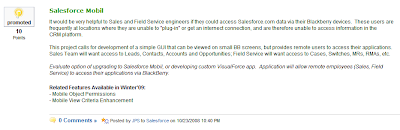
<SIDEBAR>I've blogged before about the Ideas app, which is free for all Professional, Enterprise, and Unlimited editions. If you're not using Ideas, you should be! The concept is similar to the IdeaExchange, but for your own user community. We use the Idea tab for all internal change requests / customizations. Want a custom field added to an existing tabbed object? Submit an Idea! Want a custom report developed? That's an idea! Want a full-fledged custom app built -- good IDEA! I shorten a lot of hallway conversations by encouraging users to go to the Ideas tab, and submit their change request. </SIDEBAR>
So I posted the “Mobile CRM Project” idea, and then did the same for each bullet item on my “Features to Explore” list. In all, I ended up creating 12 new projects for my CRM Project Team to work on in the coming weeks. Those ideas are now “in the system”, where my CRM project team will have to pay attention to them. Each time we finish a project, we’ll go back to the wishing well (the Ideas tab) and look for the next project to work on. The actual process is a bit more formal, but that’s a topic for another blog.
The important thing is that you want to make sure you don’t forget about these new features. Put them on your own project board – be it the Idea tab, your white board, or a paper napkin. When you’re done with your current “projects”, come back to that list of ideas, and figure out which one you’re going to tackle next.
1.) Start by reviewing the release notes, and carefully read about each feature
2.) Make three lists, and group each feature into one of these lists
--- Features Implemented / Turned Up Right Away
--- Features to Explore
--- Features I won’t Use
3.) Write a Newsletter for your Users, Announcing the Features you’ve implemented right away
That brings us to Release Management Best Practice tip #4 … tackling that list of “Features to Explore”. What do you do with all those features?
Start by reading each feature again. Identify the project or business need in which that feature will be useful. For instance, at the top of my “Features to Explore” list were several items related to Salesforce Mobil. This is a special Salesforce product offering that allows organizations to make their data accessible from mobil devices (iPhone, Blackbery, etc.). This was significant to me, because several users have talked about such a feature with me in various hallway conversations.
 I went to the Ideas tab (which is where I send all Users who have really neat ideas of things they want added to our implementation of Salesforce.com) – but there were no ideas related to mobile access of Salesforce.com data. I thought back to all those hallway conversations, and how I had ended every one of them with a request: “That’s a neat idea – can you add it to the Ideas tab?” For some reason, users have all these great ideas in the hallways, but when it comes time to writing them down … they suddenly lack follow-through.
So I added the following Idea:

<SIDEBAR>I've blogged before about the Ideas app, which is free for all Professional, Enterprise, and Unlimited editions. If you're not using Ideas, you should be! The concept is similar to the IdeaExchange, but for your own user community. We use the Idea tab for all internal change requests / customizations. Want a custom field added to an existing tabbed object? Submit an Idea! Want a custom report developed? That's an idea! Want a full-fledged custom app built -- good IDEA! I shorten a lot of hallway conversations by encouraging users to go to the Ideas tab, and submit their change request. </SIDEBAR>
So I posted the “Mobile CRM Project” idea, and then did the same for each bullet item on my “Features to Explore” list. In all, I ended up creating 12 new projects for my CRM Project Team to work on in the coming weeks. Those ideas are now “in the system”, where my CRM project team will have to pay attention to them. Each time we finish a project, we’ll go back to the wishing well (the Ideas tab) and look for the next project to work on. The actual process is a bit more formal, but that’s a topic for another blog.
The important thing is that you want to make sure you don’t forget about these new features. Put them on your own project board – be it the Idea tab, your white board, or a paper napkin. When you’re done with your current “projects”, come back to that list of ideas, and figure out which one you’re going to tackle next.
Monday, October 20, 2008
Announce New SFDC Features to Your Users with a Newsletter

In our last article, we created three lists related to new features in the Winter'09 Release:
- Features to Be Implmented Right Away
- Features to Be Explored (at a later date)
- Features you don't plan to use at all.
Now that you've got your three lists, let's tackle the first one -- features to be implemented right away.
Review the Release Notes carefully; many features must be enabled before you can take advantage of them. Once enabled, they may change the "look and feel" of your application. Avoid the flood of questions from users asking who moved their cheese -- with a quarterly newsletter.
 I create all my newsletters using Word, filling them with lots of pictures and text. Salesforce is a graphical interface, and your communications will have much greater impact if you include screenshots about the features you're describing. After the newsletter is done, I use the mass email feature in the Administrator Setup section to distribute it.
 Writing a community newsletter isn't difficult. If you're stuck staring at a blank page, check out the free newsletter templates available from Microsoft Online. There are lots of clever ideas here. I downloaded several, but ended up only keeping the banner from one of them. The rest is just a one-column document, with lots of pictures included in the mix.
To include pictures in your Word Newsletter, try this:
 (1) Navigate to a view in Salesforce.com that shows the screen or feature you want to talk about.
(2) Click the PRINT SCREEN button on your keyboard, to capture your screen image in memory.
(3) Open an image editing application. I use Paint because it's fast and easy, and we're not doing a lot of image manipulation for this exercise. To launch Paint, click Start --> Programs --> Accessories --> Paint).
(4) Press CTRL-V to paste the captured screenshot into the image editor.
(5) Use the toolbars to crop only the portion of the image that you want to focus your readers. If necessary, highlight the area, by drawing thick red borders around it (as I've done with many images on this blog).
(6) Once you have the image just the way you want it, save it as JPG format. Then import the image into your Word document. Right click on the imported image, and play with the border and text wrap settings, as needed.
I recommend that your quarterly newsletter be timed in conjunction with Salesforce.com releases. Inform your users about all the new features that have been made available to them. Include details about all the customizations (custom fields, objects, tabs, dashboards, reports, VisualForce pages, Apex Triggers, etc.) you've implemented since the last newsletter was published, as well.
The quarterly newsletter keeps users informed about changes and features that have been added to your instance of Salesforce.com. It also reminds your managers and executive stakeholders just how valuable you are to the organization. Save these newsletters in a folder archive -- they're handy to have when it comes time to write your annual self-performance appraisal!

Thursday, October 16, 2008
Getting Everything You Can Out the Winter'09 Release

"Why did the orange popsicle go away," the voice on the other side of the phone asked.
"Huh?" I confess, it takes awhile for my brain to process these types of questions.
"There's a coffee picture there now, or something. Hot Chocolate? In Salesforce --"
I'm surprised when I run into other Salesforce.com Administrators who don’t know about new features in the latest release – aren’t even aware that their system has been upgraded.
“It has?”
“Oh, sure! In fact, you’ve probably had six or more upgrades since you started your Salesforce.com subscription a couple years back.”
“Really? No way!”
Yes way.
It's a testament to the seamless service that SaaS companies offer. When you don’t have to worry about the hardware or software operating under the application, you tend to forget it’s there. You forget that someone out there IS worrying about the technology, and they are constantly improving on it. And yet, if you don’t pay attention to those new releases, you’re not getting as much out of the platform as you could be. I’ve found that many Salesforce.com System Administrators casually glance at the release notes, or don’t review them at all. Consequently, they don't take advantage of the more powerful (and free!) features that Salesforce.com rolls out to it's customers each release cycle.
In the wake of the Winter’09 release, I’m following up with various System Administrators I’ve worked with over the past few years, and asking them to do a Winter’09 Feature Audit. It works like this: I ask them to list all the features in the Winter’09 release (over 50 of them!), and group them into three categories: Features Implemented / Using Now, features that might be helpful to my business (need to explore), features I won’t use.
Do this with every release (including the past releases that you "casually glanced at"), and I promise you’re going to learn a thing or two. This process is going to enforce you to read the release notes carefully. You’ll understand the potential impact of every release feature on your organization, and you’ll soon start to see how you can get more from Salesforce.com than you have in the past.
One week after release, here’s my Winter’09 Feature Audit List:
FEATURES IMPLEMENTED / USING NOW
- Salesforce Idea Enhancements
- Ideas HTML editor
- Case Teams
- Storage Enhancements
- Edit “Case Comments” permissions
- “Transfer Cases” permission
- Notify Case Owner when Case Ownership Changes Setting
- Schedule and Email Reports
- Support for Tagging Dashboards
- Password Strength Checker
- Community Nickname Userfield
FEATURES TO EXPLORE
- Mobile Object Permissions
- Mobile View Criteria Enhancements
- Partner Portal Enhancements
- Email-to-Case Now Supports the CC and BCC Fields of Inbound Email
- Email-to-Case Preserves File Extension on Attachments
- Salesforce Call Center Supports the *, # and + Characters
- Click-and-Create Events
- Email to Salesforce Enhancements
- Account Lookup During Lead Conversion
- Choosing Lead Status Defaults During Lead Conversion
- Opportunity Dependant Fields and Custom Save Logic
- Visualforce Enhancements
- Visualforce Email Templates
- Apex Enhancments
- Force.com Web API Enhancements
- Force.com Development as a Service Enhancements
- Force.com Connect for Outlook: Streamlined Contact Associations
- Support for New Logical Operations
- Support for Self Relationships in Cross-Object Formulas
- Language Support
- Improved Component Management
- User License Enhancements for Developer Edition
- Support for Activities, Workflow, and Approval Processes on Junctor Objects
- Recall Actions for Approval Processes
- Case Comments Workflow
- Default values for Encrypted Custom Fields on User Records
FEATURES I WON’T USE
- Ideas Multi-select Categories Field
- HTML Messages for Customer Portal
- Salesforce Content Support for Google Docs
- Salesforce Mobile for iPhone
- Record Ownership Filter Enhancement for Activities
- Salesforce-to-Salesforce Enhancements
- Campaign Influence
- Budgeting and Planning Fields for Campaign Influence
- Mass Removal of Campaign Members from Campaigns
- Converting Existing Files to Google Docs
- Force.com Connect Offline: Custom Object Tabs
- Force.com Connect for Lotus Notes: Streamlined Contact Associations
- Images Supported in Dashboard Emails for Lotus Notes
- Custom Objects Managed Package Field Changes
- Custom Report Types Managed Package Changes
- Managed Folders and Letterhead Editable and Deleteable in Subscribers Organization
- Removing a Released Component from a Managed Package
- Field Management
- Protected Components
- SAML Start and Logout Pages
But wait, we're not done yet! I’ve got my list, have you made yours? Come back tomorrow with your Winter'09 / Organizational Feature Audit list, and we’ll discuss what to do with them.
Tuesday, October 14, 2008
Meet Anna, My Personal Trainer

Ok, I'm going off topic to introduce you to my personal trainer, Anna. That's right, she's all pixels and polygons. Sadly, a lot of women have entered (and left) my life that way (Ahh, Lara Croft, how I miss thee!). But Anna is DIFFERENT. Different, because she totally kicks my ass!
It started a few weeks ago. I decided I would need another exercise routine for the coming winter months. I already jog 3-4 days a week, and I was looking for something to do on alternating days when I'm not jogging. I don't like driving to the health club, nor the pricey membership. I've always preferred my own private work-out room in the basement, but haven't had one since we moved into the new house.
 Don't ask me why I was in a gaming shop looking for exercise routines, but I saw this Eye-Toy: Kinetic (click the link for a great review by Dave Warner; images are reproduced here with his gracious permission). The game box was in a category called "exergaming". Thehre were no cartoons on the cover, just some actors gyrating in strange contortions.
 We have an Eye-Toy, so I'm familiar with it. It's a a USB camera that hooks up to your PlayStation gaming console. I've played endless rounds of other Eye-Toy games with my kids: Anti-Grav, Operation: Spy and Nicktoons Movin'. But as I eyed this toy (bad pun, sorry) on the discount rack, I was skeptical. The cute, bouncy brunette behind the counter said Kinetic was a GREAT exercise program. For $5, I figured I couldn't go wrong, so I grabbed the last copy.
I've been working out with the program for about two weeks now. I'm a lot more out of shape than I thought. How can that be? I run ... three days a week! Surely I can't be THAT out of shape. Wrong. Eye-Toy: Kinetic has found muscles I didn't even know I had.
Because I run, I use the Eye-Toy program to work on upper body and abdominals. It shames me that my animated pixel trainer can do more full plank push-ups and bicycle crunches than I can, and that she doesn't even break a sweat or get out of breath while doing it. And there are a number of cardio routines that exhaust me in a way that running never has.
Anna shouts out encouragement from behind the TV screen, "Come on, let's really push it for these last 30-seconds. Go, go, go, go!" She also chastises me when I miss a training session. "Well, where were you yesterday? Let's make up for it, I really want to see good performance today."
I'm down 6 lbs, which really wasn't a goal. Still, I won't complain about weight loss! I'm also very achy and sore in my arms and abdomen, proof that I'm working muscles that haven't been exercised in a long, long while.
The best thing about Eye-Toy is that I don't need to worry about getting attacked by vampires while doing it, but that's a topic for a different day.
Monday, October 13, 2008
Practicing Safe SaaS: Understanding the Identity Confirmation Feature
In yesterday’s blog, I advocated User Education as your best and for all pratical purposes, your only real defense against Phishing. This article is written to help system administrators understand the security options available in Salesforce.com. In particular, we're going to focus on the Identity Confirmation feature.
In November 2007, Salesforce.com implemented a new feature called Identity Confirmation. This feature basically restricts what computers can access your data in Salesforce.com. The idea is that if a scammer somehow gains access to one of your employees usernames and passwords (through a phishing scam), they wouldn't be able to use that information from their own computer. The first time they tried to login, Salesforce.com would detect that they were not logging in from a trusted network location, and their computer was not authenticated.
Say again? In order to access your Salesforce.com instance, a computer must either reside on an “trusted” network, or the computer must have the security activation feature enabled.
What is a "Trusted" Network
Click Setup -> Security Controls -> Network Access. The listing shows all IP Address Ranges that are considered “safe”. Any computer that tries to login to your Salesforce.com instance from one of these IP Network Address ranges will not be challenged by the Identity Confirmation feature. In general, you’ll want to keep this list as narrow as possible. The most secure configuration would be an empty list -- delete EVERY IP Address range. That means that no IP Network is trusted, and every computer that accesses your instance of Salesforce.com must be individually authenticated. It’s more practical, however, to allow your corporate network, and perhaps those of your remote branch offices.
If you’re looking at the Network Access list for the first time, you might be surprised at the number of Trusted IP Ranges already in the list. I sure was! I had IP ranges in Belgium, Columbia, Ecuador, El Salvador, and the USA. Where did they all come from?

When the Identify Confirmation feature was enabled this past November, Salesforce.com initialized this trusted IP address list based on the login history of your users. If you have a lot of traveling sales folks, or corporate users accessing Salesforce.com from home, their login history made its way into this Network Access listing. Appropriately, Salesforce wanted to minimize the impact of the new Identity Confirmation feature on existing users, so it assumed that any location existing users had accessed the system from over the past several months were trusted IP networks.
Salesforce.com Administrators should review this list with their IT organization, identify which IP Address ranges are valid, and then gradually delete the rest. Before you delete any entries, take a screenshot or record all of the IP addresses. If you delete the wrong entries, you'll want to refer to that "backup" copy, so you can re-add the IP Addresses mask values correctly. Don’t delete the non-valid IP address ranges all at once, or you might be swamped with users seeing the unfamiliar identity confirmation login feature for the first time. Instead, gradually delete a few of the entries over time.
What Happens If a User Logs In from a Non-Trusted Network?
The first a user tries to login to Salesforce.com from outside the trusted network (perhaps they're on the road, logging in from a hotel, or logging in from their personal home computer), they will be prompted to "activate" (authenticate) that computer.

Click the "Send Activiation Link" button, and Salesforce.com sends an Activation Email. The email contains a link, which can either be clicked, or copy/pasted into a web browser. That computer is not "activated" (authenticated), and will be able to log in successfully.
It's not bullet proof, especially if you're using web-based mail services, like Gmail, Lycos, Yahoo, etc. In recent US political campaign news, we've seen how easy it is for some runny-nosed punk to gain unauthorized access to someone's web service email account. If the Phishing Scammer does not have also have access to your users email account, the Identity Confirmation feature in SFDC is an effective safeguard on your corporate data.
What Other Security Measures Can I Take to Safeguard My Corporate Data?
1.) Enforce strong Password policies. Click Setup -> Security Controls -> Password Policies. For the most part, the default settings are pretty good. I changed the 90-day password expiratin to a 60-day password expiration, to match our other system security profiles. I also set the lockout effective period to Forever -- users have to come knocking on my door (or rining up my phone) if they locked themselves out with 10 failed password attempts.

2.) Enforce strong Session security. Click Setup --> Security Controls --> Session Settings.

- Set your session time-out value, based on the content of your system data. If you have a lot of sensitive data (credit card numbers, user account / password information, etc.), select a shorter time-out period.
- Always lock sessions to the IP Address from which they originate. This will protect your user community from a more sophisticated type of hacking known as browser hijacking.
- Always require secure connection (HTTPS)
- Disable caching and autocomplete on the login page. Most browsers can store user name and passwords. After a user logs in once, the browser prompts if they would like to auto login on subsequent attempts. Very useful, if you forget your password a lot. Imagine one of your users absent-mindledly taking advantage of this feature -- while logging in from the Internet Cafe. Now any one who accesses that same terminal can come along and login to your Salesforce.com instance, without even knowing anyone's password! Disabling caching and autocomplete prevents this problem.
3.) Contact Salesforce.com and request a FREE security briefing. Salesforce will do a tailored approach, specific to your own instance of Salesforce.com, and the way in which you and your users work every day. Their security experts will review your implementation, and recommend a set of security measures to deploy. To get more infomraiton, contact security@salesforce.com.
There are many other options that you can implement, such as restricting login to certain IP ranges (for specific profiles), two-factor authentication (such as secure IT tokens), and third party solutions, like the Barracuda Spam Firewall. Taking advantage of the free security briefing from Salesforce.com will help you identify the best solution for your specific business need.
In November 2007, Salesforce.com implemented a new feature called Identity Confirmation. This feature basically restricts what computers can access your data in Salesforce.com. The idea is that if a scammer somehow gains access to one of your employees usernames and passwords (through a phishing scam), they wouldn't be able to use that information from their own computer. The first time they tried to login, Salesforce.com would detect that they were not logging in from a trusted network location, and their computer was not authenticated.
Say again? In order to access your Salesforce.com instance, a computer must either reside on an “trusted” network, or the computer must have the security activation feature enabled.
What is a "Trusted" Network
Click Setup -> Security Controls -> Network Access. The listing shows all IP Address Ranges that are considered “safe”. Any computer that tries to login to your Salesforce.com instance from one of these IP Network Address ranges will not be challenged by the Identity Confirmation feature. In general, you’ll want to keep this list as narrow as possible. The most secure configuration would be an empty list -- delete EVERY IP Address range. That means that no IP Network is trusted, and every computer that accesses your instance of Salesforce.com must be individually authenticated. It’s more practical, however, to allow your corporate network, and perhaps those of your remote branch offices.
If you’re looking at the Network Access list for the first time, you might be surprised at the number of Trusted IP Ranges already in the list. I sure was! I had IP ranges in Belgium, Columbia, Ecuador, El Salvador, and the USA. Where did they all come from?

When the Identify Confirmation feature was enabled this past November, Salesforce.com initialized this trusted IP address list based on the login history of your users. If you have a lot of traveling sales folks, or corporate users accessing Salesforce.com from home, their login history made its way into this Network Access listing. Appropriately, Salesforce wanted to minimize the impact of the new Identity Confirmation feature on existing users, so it assumed that any location existing users had accessed the system from over the past several months were trusted IP networks.
Salesforce.com Administrators should review this list with their IT organization, identify which IP Address ranges are valid, and then gradually delete the rest. Before you delete any entries, take a screenshot or record all of the IP addresses. If you delete the wrong entries, you'll want to refer to that "backup" copy, so you can re-add the IP Addresses mask values correctly. Don’t delete the non-valid IP address ranges all at once, or you might be swamped with users seeing the unfamiliar identity confirmation login feature for the first time. Instead, gradually delete a few of the entries over time.
What Happens If a User Logs In from a Non-Trusted Network?
The first a user tries to login to Salesforce.com from outside the trusted network (perhaps they're on the road, logging in from a hotel, or logging in from their personal home computer), they will be prompted to "activate" (authenticate) that computer.

Click the "Send Activiation Link" button, and Salesforce.com sends an Activation Email. The email contains a link, which can either be clicked, or copy/pasted into a web browser. That computer is not "activated" (authenticated), and will be able to log in successfully.
It's not bullet proof, especially if you're using web-based mail services, like Gmail, Lycos, Yahoo, etc. In recent US political campaign news, we've seen how easy it is for some runny-nosed punk to gain unauthorized access to someone's web service email account. If the Phishing Scammer does not have also have access to your users email account, the Identity Confirmation feature in SFDC is an effective safeguard on your corporate data.
What Other Security Measures Can I Take to Safeguard My Corporate Data?
1.) Enforce strong Password policies. Click Setup -> Security Controls -> Password Policies. For the most part, the default settings are pretty good. I changed the 90-day password expiratin to a 60-day password expiration, to match our other system security profiles. I also set the lockout effective period to Forever -- users have to come knocking on my door (or rining up my phone) if they locked themselves out with 10 failed password attempts.

2.) Enforce strong Session security. Click Setup --> Security Controls --> Session Settings.

- Set your session time-out value, based on the content of your system data. If you have a lot of sensitive data (credit card numbers, user account / password information, etc.), select a shorter time-out period.
- Always lock sessions to the IP Address from which they originate. This will protect your user community from a more sophisticated type of hacking known as browser hijacking.
- Always require secure connection (HTTPS)
- Disable caching and autocomplete on the login page. Most browsers can store user name and passwords. After a user logs in once, the browser prompts if they would like to auto login on subsequent attempts. Very useful, if you forget your password a lot. Imagine one of your users absent-mindledly taking advantage of this feature -- while logging in from the Internet Cafe. Now any one who accesses that same terminal can come along and login to your Salesforce.com instance, without even knowing anyone's password! Disabling caching and autocomplete prevents this problem.
3.) Contact Salesforce.com and request a FREE security briefing. Salesforce will do a tailored approach, specific to your own instance of Salesforce.com, and the way in which you and your users work every day. Their security experts will review your implementation, and recommend a set of security measures to deploy. To get more infomraiton, contact security@salesforce.com.
There are many other options that you can implement, such as restricting login to certain IP ranges (for specific profiles), two-factor authentication (such as secure IT tokens), and third party solutions, like the Barracuda Spam Firewall. Taking advantage of the free security briefing from Salesforce.com will help you identify the best solution for your specific business need.
Tuesday, October 7, 2008
Educate Your Users About Phishing
Phishing methods are becoming more and more sophisticated. The only thing a scammer needs to start a phishing campaign is an email address of your user community, and those aren’t very hard to guess. Most companies use a standard naming convention for their email addresses: name@company.com. Once a scammer figures out what syntax you’re using for the name field (jseabury@company.com, jp.seabury@company.com, jp_seabury@company.com, etc), they can get employee name information, and start phishing your employees directly.
Bah … how are they going to get the names of my employees? Social networking sites make it easy. A scammer can create a bogus LinkedIn profile, and indicate that they worked at a particular company. They can immediately get a list of all the other employees of that company, including their first name and last name. Wham – now they’ve got a phishing list.
As a System Administrator, your best defense against phishing attacks starts with education. If you don’t have a periodic newsletter, company blog, or Security Awareness training program, start one. Get in front of your users and educate them about phishing. Show samples of fraudulent email and phishing attempts. Demonstrate how easy it is to be lured to a false website. Instruct them to verify the browser address of the site they are logging into: https://www.salesforce.com/login.jsp or https://login.salesforce.com. Show samples of bad URL addresses, like http://salsforce.com and http://go-salesforce.com. The differences can be very subtle, and it’s easy to be fooled by them.
Caution your team to never fill out personal information in an embedded HTML form of an email. Train users to hover their mouse over links in an HTML email, and read the URL address embedded beneath the link before clicking on it. The link can look perfectly legitimate, but the embedded URL might navigate to a non-Salesforce.com website:

Instruct your team about malicious attachments, like key loggers, viruses and other malware. Keep your anti-virus signatures up to date, but don’t trust them to be your only defense.
Renew these training programs every couple of months, and include samples of phishing attacks that have been seen at your company.
Finally, if users think they have been targeted by a phishing attempt, train them to log out of their computer, power it completely off, and contact their System Administrator immediately. Compromised computers should be turned over to IT, so they can be checked and cleared of malware. System Administrators should immediately reset the password of the affected user, to prevent unauthorized access.
After educating your users about phishing and malware, your next defense is setting up tighter security within Salesforce.com – and that’s a topic for tomorrow.
Bah … how are they going to get the names of my employees? Social networking sites make it easy. A scammer can create a bogus LinkedIn profile, and indicate that they worked at a particular company. They can immediately get a list of all the other employees of that company, including their first name and last name. Wham – now they’ve got a phishing list.
As a System Administrator, your best defense against phishing attacks starts with education. If you don’t have a periodic newsletter, company blog, or Security Awareness training program, start one. Get in front of your users and educate them about phishing. Show samples of fraudulent email and phishing attempts. Demonstrate how easy it is to be lured to a false website. Instruct them to verify the browser address of the site they are logging into: https://www.salesforce.com/login.jsp or https://login.salesforce.com. Show samples of bad URL addresses, like http://salsforce.com and http://go-salesforce.com. The differences can be very subtle, and it’s easy to be fooled by them.
Caution your team to never fill out personal information in an embedded HTML form of an email. Train users to hover their mouse over links in an HTML email, and read the URL address embedded beneath the link before clicking on it. The link can look perfectly legitimate, but the embedded URL might navigate to a non-Salesforce.com website:

Instruct your team about malicious attachments, like key loggers, viruses and other malware. Keep your anti-virus signatures up to date, but don’t trust them to be your only defense.
Renew these training programs every couple of months, and include samples of phishing attacks that have been seen at your company.
Finally, if users think they have been targeted by a phishing attempt, train them to log out of their computer, power it completely off, and contact their System Administrator immediately. Compromised computers should be turned over to IT, so they can be checked and cleared of malware. System Administrators should immediately reset the password of the affected user, to prevent unauthorized access.
After educating your users about phishing and malware, your next defense is setting up tighter security within Salesforce.com – and that’s a topic for tomorrow.
Monday, October 6, 2008
Phishing 101: Know Thy Enemy
In my work, I have the opportunity to speak with a good number of Salesforce.com Administrators. I’m often surprised at how many of these folks don’t come from IT or computer-related backgrounds. They displayed an aptitude and willingness to embrace the new technology, and so their senior managers put them in charge of system administration. Many Salesforce.com Users (and quite a fair number of administrators) don’t understand the malicious phishing methods that are out there today. So that’s the topic of this article, phishing: what it is and how it works. Tomorrow, we’ll talk about ways you can protect your users (and your sensitive company data) from phishing attempts.
What is Phishing? Phishing is the process by which scam artists try to acquire user names, passwords, and other sensitive data, by masquerading as a trustworthy source in an electronic communication. Phishing attempts generally start as an eMail or Instant Message, and ask the user to download an attachment. The attachment is malware, very often a key logger, which captures all username / password information that a user types into their computer. The malware packages all these user name / password entries, and sends them back to the scammer, without the victim being aware anything has happened.
Another popular method creates an email that looks authentic, but contains links which send the reader to a fake website (for example, a website that looks like a Salesforce.com login screen). The unsuspecting user logs in, gets an error message that their password was incorrect, and is asked to try their password again. Meanwhile, under the web page, their username / password entries have been recorded, and the application has redirected their browser to the real Salesforce.com page. The subsequent login attempt works, and the user isn’t aware that they’ve just given their login information to phishing scam.
It’s Easy. It sounds complex, but it is incredibly easy to start a malicious phishing campaign, particularly the latter method which sends an unsuspecting user to a fake website. It takes a minimal amount of HTML experience to mirror the look and feel of a website login page. Want to see how easy? Navigate to the standard Salesforce.com login screen: https://login.salesforce.com. Right click your mouse, and then click “View Source” or “View Page Source” (depending on your browser's menu options). You’re now looking at the source code for the page loaded in your browser. Copy and save that HTML to a local directory on your harddrive, and give the file a ".html” extension. Now run that HTML page, by double clicking on it.

It’s not pretty, but finishing it off is very simple – just download a few images from the login page, do a little TABLE and FONT formatting in the HTML page, and find a website to host it on. Poof! You’ve got your own Salesforce.com login screen. It took me 15 minutes to make this identical mock-up of a Salesforce.com login screen ... would your users know the difference between this fake version and the real thing?The only visible difference between the fake website and the real website is the URL, but how many of your users pay attention to that?

Next, the scammer needs to modify the HTML code so that any entries in the username / password fields are saved to a local database, and then redirect the user to the real SFDC login screen, and your almost ready for business. Write an email that prompts users to login to Salesforce.com and look at something (a custom report, a dashboard, or anything else) by including a link to that object – only the link provided will take the viewer to your fake website.
Known Phishing Attacks on SFDC Users. Think this type of stuff only happens in the movies? Think again. Salesforce.com publishes a list of known phishing attacks that have been targeted toward their customers here: http://trust.salesforce.com/trust/security/.
Phishing scams are on the rise. I’ve intercepted an average of 3 phishing scams per employee this year. Many employees caught on to the fact that these were scam emails (when will the phishers learn to use proper English?), but some employees went ahead and downloaded and/or installed the attached malware, or clicked through to fake websites that asked for their private information.
As administrators, we need to be vigilent about the security of our company data. Tomorrow, we'll look at methods you can use to safeguard your data and your users.
What is Phishing? Phishing is the process by which scam artists try to acquire user names, passwords, and other sensitive data, by masquerading as a trustworthy source in an electronic communication. Phishing attempts generally start as an eMail or Instant Message, and ask the user to download an attachment. The attachment is malware, very often a key logger, which captures all username / password information that a user types into their computer. The malware packages all these user name / password entries, and sends them back to the scammer, without the victim being aware anything has happened.
Another popular method creates an email that looks authentic, but contains links which send the reader to a fake website (for example, a website that looks like a Salesforce.com login screen). The unsuspecting user logs in, gets an error message that their password was incorrect, and is asked to try their password again. Meanwhile, under the web page, their username / password entries have been recorded, and the application has redirected their browser to the real Salesforce.com page. The subsequent login attempt works, and the user isn’t aware that they’ve just given their login information to phishing scam.
It’s Easy. It sounds complex, but it is incredibly easy to start a malicious phishing campaign, particularly the latter method which sends an unsuspecting user to a fake website. It takes a minimal amount of HTML experience to mirror the look and feel of a website login page. Want to see how easy? Navigate to the standard Salesforce.com login screen: https://login.salesforce.com. Right click your mouse, and then click “View Source” or “View Page Source” (depending on your browser's menu options). You’re now looking at the source code for the page loaded in your browser. Copy and save that HTML to a local directory on your harddrive, and give the file a ".html” extension. Now run that HTML page, by double clicking on it.

It’s not pretty, but finishing it off is very simple – just download a few images from the login page, do a little TABLE and FONT formatting in the HTML page, and find a website to host it on. Poof! You’ve got your own Salesforce.com login screen. It took me 15 minutes to make this identical mock-up of a Salesforce.com login screen ... would your users know the difference between this fake version and the real thing?The only visible difference between the fake website and the real website is the URL, but how many of your users pay attention to that?

Next, the scammer needs to modify the HTML code so that any entries in the username / password fields are saved to a local database, and then redirect the user to the real SFDC login screen, and your almost ready for business. Write an email that prompts users to login to Salesforce.com and look at something (a custom report, a dashboard, or anything else) by including a link to that object – only the link provided will take the viewer to your fake website.
Known Phishing Attacks on SFDC Users. Think this type of stuff only happens in the movies? Think again. Salesforce.com publishes a list of known phishing attacks that have been targeted toward their customers here: http://trust.salesforce.com/trust/security/.
Phishing scams are on the rise. I’ve intercepted an average of 3 phishing scams per employee this year. Many employees caught on to the fact that these were scam emails (when will the phishers learn to use proper English?), but some employees went ahead and downloaded and/or installed the attached malware, or clicked through to fake websites that asked for their private information.
As administrators, we need to be vigilent about the security of our company data. Tomorrow, we'll look at methods you can use to safeguard your data and your users.
Sunday, October 5, 2008
Then and Now
Times have changed, haven't they?
 My first computer was a Sinclair Z81, a gift from my father. I think he was tyring to nudge me, at a very early age, into the field of computer science (thanks, Dad!). It plugged into our 13" B&W TV, and a tape recorder was my "disk drive". I taught myself how to program in BASIC, and when I showed an aptitude and interest in computers, Dad upgraded me to a Commodore-64, and then a Commodore-128. All very cool toys.
 I don't write my own computer games any more, and my "game machine" is a bit different today: Area-51 Quad Core flagship from Alienware. Intel Core 2 Extreme, EVGA NVIDIA 790i Chipset, ATI Radeon HD 4870 x2, 1333 MHz DDR3 Memory, Killer K1 Gaming NIC. But I like it because it glows blue in the dark. Yeah, doesn't take much to impress me.
 My first laptop was an MacPortable with a 10" B&W LCD screen and built-in trackball. Despite the name, it wasn't all that portable, weighing in at 16 pounds! But it was a lot lighter than lugging the office machine back and forth, between work and home. It had a 16Mhz Motorola 68HC00 processor, and a whooping 1MB of RAM. All for the low-low price of $7,300!
 Today, my mobile computer (a bit behind the times) is a Dell Latitude D610 with Intel Pentium M processor, Windows XP, and 2048 MB of RAM. The video is ATI Mobility RADEON X300 with 64MB DDR video memory. But the best feature is my Intel Pro Wireless 2915 WLAN, which lets me connect to work (or home) from just about anywhere. No more floppy drive, but I still plug in a USB flash memory device from time to time.
 My first car was a Chevy Vega, another very generous gift from my father when he decided to upgrade the family car. The Vega got me back and forth to school (local community college) and work (YMCA, where I taught swimming classes and worked as a lifeguard for near minimum wage). During Summer months, I worked as Waterfront Director / Lifeguard at a local summer camp, best job on the planet!
 Now I drive a Toyota Prius -- and LOVE IT! I average 48 MPG on my daily commute to and from work, and with gas prices crazy fluxuation from $3-$5 a gallon, I appreciate that hybrid all the more. The Prius probably isn't the best vehicle for New England weather, but I wouldn't trade it in for anything.
 My first mobile phone was a Motorola bag phone -- which also wasn't all that mobile. It was about the same size as the first fishing tackle box I'd owned as a kid, and three times as heavy. I lugged it around in the car, to sporting events, and to work -- but never into restaurants, that was big taboo. I also remember not using it a whole lot, because the cell phone bill was outrageous, upwards of $1.25 a minute.
 Now I use a Blackberry for all my mobile phone, email, and IM messaging. I can download maps, twitter, put events on my Outlook calendar and tasks lists -- all for a flat monthly fee. I even bring it into restaurants, although I try very hard to not twiddle with it while in the company of others or in a public place.
 My favorite computer games as a kid were first-person shooter games, starting with Doom. I remember playing it in my apartment, with the lights turned low and the headphones turned high ... and being simply terrified at all the creature noises that jumped out at me. My Dad still plays Doom, if you can believe it. He refuses to play anything else until he can finish off the boss demon-thingy in the last encounter. Let it go, Dad, let it go.
 I don't play computer games much any more, but most recently I dabbled around in MMORPG games, like Everquest, Star Wars Galaxies, World of Warcraft (WoW), Eve-Online and Everquest II. I really enjoyed the social aspects of MMO gaming, and have some fond memories of Everquest in particular. I still keep in touch with a few folks I met through these games -- most by mail, and still hope to meet up with a few of them (well, one in particular) in person.
What are some of your notable gadgets over the years, and what have they changed to today?
 My first computer was a Sinclair Z81, a gift from my father. I think he was tyring to nudge me, at a very early age, into the field of computer science (thanks, Dad!). It plugged into our 13" B&W TV, and a tape recorder was my "disk drive". I taught myself how to program in BASIC, and when I showed an aptitude and interest in computers, Dad upgraded me to a Commodore-64, and then a Commodore-128. All very cool toys.
 I don't write my own computer games any more, and my "game machine" is a bit different today: Area-51 Quad Core flagship from Alienware. Intel Core 2 Extreme, EVGA NVIDIA 790i Chipset, ATI Radeon HD 4870 x2, 1333 MHz DDR3 Memory, Killer K1 Gaming NIC. But I like it because it glows blue in the dark. Yeah, doesn't take much to impress me.
 My first laptop was an MacPortable with a 10" B&W LCD screen and built-in trackball. Despite the name, it wasn't all that portable, weighing in at 16 pounds! But it was a lot lighter than lugging the office machine back and forth, between work and home. It had a 16Mhz Motorola 68HC00 processor, and a whooping 1MB of RAM. All for the low-low price of $7,300!
 Today, my mobile computer (a bit behind the times) is a Dell Latitude D610 with Intel Pentium M processor, Windows XP, and 2048 MB of RAM. The video is ATI Mobility RADEON X300 with 64MB DDR video memory. But the best feature is my Intel Pro Wireless 2915 WLAN, which lets me connect to work (or home) from just about anywhere. No more floppy drive, but I still plug in a USB flash memory device from time to time.
 My first car was a Chevy Vega, another very generous gift from my father when he decided to upgrade the family car. The Vega got me back and forth to school (local community college) and work (YMCA, where I taught swimming classes and worked as a lifeguard for near minimum wage). During Summer months, I worked as Waterfront Director / Lifeguard at a local summer camp, best job on the planet!
 Now I drive a Toyota Prius -- and LOVE IT! I average 48 MPG on my daily commute to and from work, and with gas prices crazy fluxuation from $3-$5 a gallon, I appreciate that hybrid all the more. The Prius probably isn't the best vehicle for New England weather, but I wouldn't trade it in for anything.
 My first mobile phone was a Motorola bag phone -- which also wasn't all that mobile. It was about the same size as the first fishing tackle box I'd owned as a kid, and three times as heavy. I lugged it around in the car, to sporting events, and to work -- but never into restaurants, that was big taboo. I also remember not using it a whole lot, because the cell phone bill was outrageous, upwards of $1.25 a minute.
 Now I use a Blackberry for all my mobile phone, email, and IM messaging. I can download maps, twitter, put events on my Outlook calendar and tasks lists -- all for a flat monthly fee. I even bring it into restaurants, although I try very hard to not twiddle with it while in the company of others or in a public place.
 My favorite computer games as a kid were first-person shooter games, starting with Doom. I remember playing it in my apartment, with the lights turned low and the headphones turned high ... and being simply terrified at all the creature noises that jumped out at me. My Dad still plays Doom, if you can believe it. He refuses to play anything else until he can finish off the boss demon-thingy in the last encounter. Let it go, Dad, let it go.
 I don't play computer games much any more, but most recently I dabbled around in MMORPG games, like Everquest, Star Wars Galaxies, World of Warcraft (WoW), Eve-Online and Everquest II. I really enjoyed the social aspects of MMO gaming, and have some fond memories of Everquest in particular. I still keep in touch with a few folks I met through these games -- most by mail, and still hope to meet up with a few of them (well, one in particular) in person.
What are some of your notable gadgets over the years, and what have they changed to today?
Monday, September 29, 2008
What is SaaS?
Ladies and gentleman: the story you are about to read is true. Only the names have been changed to protect the innocent.
Pencil Pusher: All right, JP, you keep mentioning SaaS in your email and PowerPoint slides. What is that?
JP: SaaS is an acronym for “Software-as-a-Service”.
Non-comprehending stares from everyone in the room.
JP: Ok … SaaS is a business solution that has been gaining popularity over the last few years. It usually refers to a web-based application that runs in your browser. Contrast that with client server applications, that run inside our corporate network, through on-premise equipment that we've purchased.
BIG CHEESE: Why is that better?
JP: There are a lot of benefits. One of the biggest benefits is that there is nothing to install.
PENNY PINCHER: So? How long does it take to install an application? You pop in a disk and it loads.
Peter Parker’s “spider sense” would be tingling right now. I move the discussion to the white board, with lots of colored markers –- they like it when I use lots of colors.
JP: Ok, this is your Portal Server. These are file servers, they house the content repositories. This is the email integration application that sits between the portal server and our email exchange server; it allows customer emails to be uploaded directly to the appropriate CRM applications, based on the email content. This is the storage server, which holds all the data. Here’s the database application which ties these systems together. What am I forgetting? Oh yeah, this is a Security server – which makes sure that this content is accessed only by authorized personnel. This is the VPN application, Firewall, and all the stuff that allows our remote sales and service teams to access this--.
Someone’s iPhone starts blarring …
JP: Good point, thanks for bringing that up. This is the mobil delivery server. It is the interface between your iPhones and Blackberry devices, and all this other stuff.
Really getting into it now, I started drawing stick figure people …
JP: These are the IT staff. The research, select, install and maintain all this hardware, along with the software that goes with it. They work night and day to make it sure it is compatible with all the other stuff on this board. When a component goes bad, they replace it. When a system upgrade is required, they test to make sure there are no interoperability issues. Take all of this equipment drawn here, and double it -– in two different data centers on two different power grids. We need that redundancy to ensure 24x7 uptime, for our support and remote field service teams. For all this equipment, we maintain spare parts and inventory. We also maintain annual service contracts with the system vendors. Hundreds of hours are spent maintaining this equipment, by specialists in various areas of our IT department. Hundreds of thousands of dollars are spent on the infrastructure and support.
My whiteboard was a work of art. I wish I’d taken a picture of it. Instead, I looked at each of them in turn, slowly. Then, with a few sweeps of the magic eraser, my drawing vanished. I drew a cloud.
JP: This is SaaS. This is Salesforce.com. They own the hardware. They own the software. They manage all that equipment, in fully redundant data centers. They take care of all upgrades, resolve all integration issues ... everything.
I’m getting good at drawing stick figures now. I connect a few stick figure people off the cloud, talking on cell phones, typing at terminals … made a horrible rendition of the globe, but I think it was recognizable. I plopped a few of stick figure people in Mexico, Colombia, Argentina, Germany, Japan.
We “rent” from Salesforce.com, with a “monthly per user” pricing model. Through our rental agreement, we can access OUR hardware on THEIR systems – from anywhere in the world. Anywhere there is internet connection.
PENCIL PUSHER: Trade-offs?
JP: Once upon a time, SaaS had a reputation for being highly rigid. You couldn’t customize it as easily as, say, an ASP model or in-house solution. But as you’ve seen with Salesforce.com, we can customize it heavily. We integrate Salesforce with our internal ERP systems, as well as our email and file sharing servers. With tools we have available from Salesforce, there’s truly nothing we can’t do.
SaaS. No hardware. No Software. Any questions?
BIG CHEESE: No questions.
Pencil Pusher: All right, JP, you keep mentioning SaaS in your email and PowerPoint slides. What is that?
JP: SaaS is an acronym for “Software-as-a-Service”.
Non-comprehending stares from everyone in the room.
JP: Ok … SaaS is a business solution that has been gaining popularity over the last few years. It usually refers to a web-based application that runs in your browser. Contrast that with client server applications, that run inside our corporate network, through on-premise equipment that we've purchased.
BIG CHEESE: Why is that better?
JP: There are a lot of benefits. One of the biggest benefits is that there is nothing to install.
PENNY PINCHER: So? How long does it take to install an application? You pop in a disk and it loads.
Peter Parker’s “spider sense” would be tingling right now. I move the discussion to the white board, with lots of colored markers –- they like it when I use lots of colors.
JP: Ok, this is your Portal Server. These are file servers, they house the content repositories. This is the email integration application that sits between the portal server and our email exchange server; it allows customer emails to be uploaded directly to the appropriate CRM applications, based on the email content. This is the storage server, which holds all the data. Here’s the database application which ties these systems together. What am I forgetting? Oh yeah, this is a Security server – which makes sure that this content is accessed only by authorized personnel. This is the VPN application, Firewall, and all the stuff that allows our remote sales and service teams to access this--.
Someone’s iPhone starts blarring …
JP: Good point, thanks for bringing that up. This is the mobil delivery server. It is the interface between your iPhones and Blackberry devices, and all this other stuff.
Really getting into it now, I started drawing stick figure people …
JP: These are the IT staff. The research, select, install and maintain all this hardware, along with the software that goes with it. They work night and day to make it sure it is compatible with all the other stuff on this board. When a component goes bad, they replace it. When a system upgrade is required, they test to make sure there are no interoperability issues. Take all of this equipment drawn here, and double it -– in two different data centers on two different power grids. We need that redundancy to ensure 24x7 uptime, for our support and remote field service teams. For all this equipment, we maintain spare parts and inventory. We also maintain annual service contracts with the system vendors. Hundreds of hours are spent maintaining this equipment, by specialists in various areas of our IT department. Hundreds of thousands of dollars are spent on the infrastructure and support.
My whiteboard was a work of art. I wish I’d taken a picture of it. Instead, I looked at each of them in turn, slowly. Then, with a few sweeps of the magic eraser, my drawing vanished. I drew a cloud.
JP: This is SaaS. This is Salesforce.com. They own the hardware. They own the software. They manage all that equipment, in fully redundant data centers. They take care of all upgrades, resolve all integration issues ... everything.
I’m getting good at drawing stick figures now. I connect a few stick figure people off the cloud, talking on cell phones, typing at terminals … made a horrible rendition of the globe, but I think it was recognizable. I plopped a few of stick figure people in Mexico, Colombia, Argentina, Germany, Japan.
We “rent” from Salesforce.com, with a “monthly per user” pricing model. Through our rental agreement, we can access OUR hardware on THEIR systems – from anywhere in the world. Anywhere there is internet connection.
PENCIL PUSHER: Trade-offs?
JP: Once upon a time, SaaS had a reputation for being highly rigid. You couldn’t customize it as easily as, say, an ASP model or in-house solution. But as you’ve seen with Salesforce.com, we can customize it heavily. We integrate Salesforce with our internal ERP systems, as well as our email and file sharing servers. With tools we have available from Salesforce, there’s truly nothing we can’t do.
SaaS. No hardware. No Software. Any questions?
BIG CHEESE: No questions.
Thursday, September 25, 2008
Calendar Application in Visualforce

Check this out (click to enlarge)! It’s my latest Visualforce application, written with a little help from Ron Hess (Developer Evangelist, Salesforce.com).
Background: Our Customer Support organization schedules periodic Maintenance Windows with our customers. During these scheduled events (usually late evening / early morning), our Support team assists the customer with hardware / software upgrades, mass configuration changes on their equipment, or other “professional services”. Like any organization, we are resource constrained, so we must be careful to not overlap more than 2-3 maintenance windows during the same time period.
Project Need: The Support team wanted an application that allowed them to view all maintenance activity in a monthly calendar format.
Here’s a screenshot of the custom tab, which uses Visualforce and Apex in it’s design. In Calendar mode, the user can see all the activities scheduled for the entire month. They can view activity from previous months, or future scheduled activity, at the click of a mouse.
Each scheduled item is color coded, based on the status of the maintenance activity:
- Black: Requested
- Blue: Scheduled / Resource Assigned
- Green: Success
- Red: Fail / Problems Encountered
- Olive Green: Cancellation
The color-coding updates automatically, whenever the case detail record status changes. For instance, when scheduled (blue) activity is finished, the Support Tech updates the status field in the Maintenance detail record. When this Calendar page is refreshed, the URL link to that activity changes from blue to green.
The Support Managers find this format much more practical than the custom Report / Dashboard views we had created for them previously. Those reports/dashboards provided the same information, but seeing the data in Calendar format is so much easier for them to see what's happening, and when.
This view helps prevent the scheduling of too many maintenance windows in a single night (although I'm going to add an Apex trigger to more tightly enforce that). The Calendar view also allows the support managers to look back at previous months, and see the volume of activity they've worked, including customer cancellations, failed activities, and successful acitivities. The data has always been in Salesforce, we're just displaying it in a different, more intuitive format -- and that's made a huge difference.
I mentioned earlier that this application was written with the help of Ron Hess. In truth, Ron unknowingly helped “jump-start” this project with his detailed post on the Salesforce.com Community forums. It's an old post, dating "way back" to April 2008. In that post, Ron provided some source code for a small calendar application he was using in conjunction with the Event object. I took snipets of that code, expanded on it, and my own calendar page then fell together quite easily.
That’s another great feature of Salesforce.com – the community forums are a great resource for getting information, ideas, and project “jump starts”.
Wednesday, September 24, 2008
Are you effective, punk? Well? Are you?

According to The Effective Executive In Action, an effective executive:
- Manages their time
- Focuses their efforts on making contributions
- Makes their strengths productive
- Concentrates their efforts on those tasks that are most important to contributions
- Makes effective decisions
…and leaves you the following questions:
“What am I getting paid to do? What should I be paid to do if I am being paid for getting the right things done in my position? Am I doing things that I shouldn’t be doing?
Eliminate or reduce the activities that do not contribute to effectiveness, the things you shouldn’t be doing. What are some of these activities?”
Tuesday, September 23, 2008

Monday, September 22, 2008
Ripples of the Wall Street Meltdown

Last week, there was enormous turmoil in the American financial system, triggering a Meltdown on Wall Street. For a lot of Tech Geeks, it's difficult to appreciate the impact of this Meltdown.
Consider Merril Lynch, which is now being acquired by Bank of America. Last year, Merril Lynch became one of Salesforce.com's largest customers. With 25,000 user licenses, they were larger than Cisco and Dell (with 15,000 users each). At the time, it was heralded as a mega-deal, and even prompted Salesforce.com to release a custom "wealth management edition", to go along with it's Salesforce Automation and CRM application suites.
Salesforce.com clearly has been making a push into the financial services industry, and now includes companies like Dow Jones Newswire and SunTrust Banks, but Bank of America is not a significant customer. I wonder what will happen to those 25,000 user licenses, now that Merril Lynch has been acquired by Bank of America. Some of that decision may hinge on how favorably Salesforce.com CFO Graham Smith's presentation to the Bank of America Investment Conference was received. You can hear his presentation here.
One thing is for sure, the Force Monkey Hotline has been ringing heavily the past two weeks. Three different head hunters called, looking for Project Managers and/or Developers with expertise in Salesforce.com. Their contracts were all in New York City, and all for companies in the Financial sector. One of them was already flying in a contractor from Denver Colorado every week.
The ripples of the Wall Street Meltdown have just begun, and I think we're going to be feeling them for a long time to come. As Wall Street consolidates, expect to see lots of infrastructure consolidation projects. These will be large, long-term projects, lasting several years. Project Managers will be in greater demand, especially for those experienced in system integration.
What about you? How has the upheavals on Wall Street affected your company? What impact do you predict from last week's events -- on the economy, in the IT sector, on your company, or on you?
Wednesday, September 17, 2008
Would you pick an Airline because it offers Internet?
In my current business, I don’t fly very often, but this November I’ll be flying coast to coast so I can attend Dreamforce 2008. I’ve already booked my flight on Southwest Airlines, but after reading a recent New York Times article (Internet in the Sky: Surf but Don’t Call), I’m regretting that. According to the article, American Airlines began offering in-flight internet, but is errecting “technological barriers to block Skype and similar software programs from enabling voice calls”.
Whoa … hold the phone! Did you just say that American Airlines offers in-flight internet? And they’re currently the only airline offering this service?
I’m geek through and through, and love the fact that I’m completely wired into the web. Whether I’m on my internect connection at work, my wireless connection at home, a WiFi connection at the coffee shop, or checking email and twitter from my Blackberry.
Sure, I take vacations with my family, and I schedule a long weekend escapes from work. During these occassions I am always unplugged, off the grid, and completely inaccessible. But once I’m back in “civilization”, I need to be wired constantly. I’ll go through withdrawals if I’m not able to IM friends and colleagues, or connect to my various Cloud applications.
In the past, a plane flight meant 2-6 hours of my being forced off the grid. Mentally, that just drove me nuts. I’d prepare for the flight by printing out a bunch of tech articles to read, some work-related documents, and maybe pack a user guide or reference manual. Light geek reading. Be the end of the flight, these documents would all be tattered and covered with jotted notes I’d made during the flight: “Discuss with Jack.” “Forward to CRM steering committee”. “Google this.” “Google that.” “Review benefit / impact to XYZ dept.” I couldn’t wait to power-up my Blackberry, as soon as we landed, and I’d be twitching as I searched for that first public WiFi connection.
Six hours isn’t really a very long time – but spending those hours stuck in tiny seat (usually wedged between two “larger” passengers on either side) with nothing to stare at except the seatback in front of me … torture. If an airport terminal has several airline vendors vying for my business, and only one of them offers in-flight internet … it’s a no-brainer for me. American Airlines just became my preferred airline.
What about you? Would you choose an Airline over competitors, principally based on it’s offering of inernet service?
Whoa … hold the phone! Did you just say that American Airlines offers in-flight internet? And they’re currently the only airline offering this service?
I’m geek through and through, and love the fact that I’m completely wired into the web. Whether I’m on my internect connection at work, my wireless connection at home, a WiFi connection at the coffee shop, or checking email and twitter from my Blackberry.
Sure, I take vacations with my family, and I schedule a long weekend escapes from work. During these occassions I am always unplugged, off the grid, and completely inaccessible. But once I’m back in “civilization”, I need to be wired constantly. I’ll go through withdrawals if I’m not able to IM friends and colleagues, or connect to my various Cloud applications.
In the past, a plane flight meant 2-6 hours of my being forced off the grid. Mentally, that just drove me nuts. I’d prepare for the flight by printing out a bunch of tech articles to read, some work-related documents, and maybe pack a user guide or reference manual. Light geek reading. Be the end of the flight, these documents would all be tattered and covered with jotted notes I’d made during the flight: “Discuss with Jack.” “Forward to CRM steering committee”. “Google this.” “Google that.” “Review benefit / impact to XYZ dept.” I couldn’t wait to power-up my Blackberry, as soon as we landed, and I’d be twitching as I searched for that first public WiFi connection.
Six hours isn’t really a very long time – but spending those hours stuck in tiny seat (usually wedged between two “larger” passengers on either side) with nothing to stare at except the seatback in front of me … torture. If an airport terminal has several airline vendors vying for my business, and only one of them offers in-flight internet … it’s a no-brainer for me. American Airlines just became my preferred airline.
What about you? Would you choose an Airline over competitors, principally based on it’s offering of inernet service?
Tuesday, September 16, 2008
Cloud Computing Joins the S&P 500
I’ve been watching news blurbs and press releases about Salesforce.com being added to the S&P 500 with passive interest. Interest, because it’s Salesforce.com. Passive, because I’m not enough of a finance geek to know how big a deal this is, or what it really means.
The big news is that Salesforce.com is the first Software-as-a-Service (Saas) company to be placed on Standard & Poor’s S&P 500 Index. That’s big news for cloud computing in general, and Salesforce.com in particular.
"The decision to add salesforce.com to the S&P 500 is a clear sign that cloud computing has arrived," said Marc Benioff, Chairman and CEO at Salesforce.com. "Every day, more than 47,000 customers rely on salesforce.com to help run their businesses. Now that incredible record of success in cloud computing has a new home -- the S&P 500."
According to their website, Standard & Poor provides "independent credit ratings, indices, risk evaluation and investment research and data". The company picks the 500 leading companies in the leading industries of the U.S. economy, and monitors them on the S&P 500. In order to remain on the S&P 500, companies must have a market capitialization of $5 billion (SFDC has a market cap of $6.8 billion), and at least half of the companies shares must be publically owned.
The company that is coming off the S&P 500 Index, opening the spot for Salesforce.com, is Freddie Mac (Federal Home Loan Mortgage). The failing lender's market cap dropped to $614 million last week. Soon after, the U.S. government siezed control of the company (along with Fannie Mae), fired all of it’s executives, and burdened U.S. tax payers with the massive bail-out debt. Be sure to send a thank you letter to your political leaders!
Salesforce.com has some great company on the S&P 500 Index. Three of the top ten companies are all in IT: Microsoft, IBM and Apple. Go, Salesforce.com, go!
The big news is that Salesforce.com is the first Software-as-a-Service (Saas) company to be placed on Standard & Poor’s S&P 500 Index. That’s big news for cloud computing in general, and Salesforce.com in particular.
"The decision to add salesforce.com to the S&P 500 is a clear sign that cloud computing has arrived," said Marc Benioff, Chairman and CEO at Salesforce.com. "Every day, more than 47,000 customers rely on salesforce.com to help run their businesses. Now that incredible record of success in cloud computing has a new home -- the S&P 500."
According to their website, Standard & Poor provides "independent credit ratings, indices, risk evaluation and investment research and data". The company picks the 500 leading companies in the leading industries of the U.S. economy, and monitors them on the S&P 500. In order to remain on the S&P 500, companies must have a market capitialization of $5 billion (SFDC has a market cap of $6.8 billion), and at least half of the companies shares must be publically owned.
The company that is coming off the S&P 500 Index, opening the spot for Salesforce.com, is Freddie Mac (Federal Home Loan Mortgage). The failing lender's market cap dropped to $614 million last week. Soon after, the U.S. government siezed control of the company (along with Fannie Mae), fired all of it’s executives, and burdened U.S. tax payers with the massive bail-out debt. Be sure to send a thank you letter to your political leaders!
Salesforce.com has some great company on the S&P 500 Index. Three of the top ten companies are all in IT: Microsoft, IBM and Apple. Go, Salesforce.com, go!
Monday, September 15, 2008
Formating datetime variables in Apex
The current project I’m working on is a custom Visualforce page showing all of the scheduled maintenance activities my Support department has scheduled with our Customers. We have a custom object (Maintenance__c) which describes the details for the maintenance activity, including Start Date/Time and End Date/Time. I wanted to display this information in Calendar format using Visualforce. That way, my users can see, at a glance, what activities are scheduled throughout the month. I’ll show more of the application, as it develops, but for now I’ll focus on my first crisis.
The Problem: I wanted to display the current date in the subtitle of the section header. The code that does this is highlighted in the Page Editor section below, and the Visualforce page is right above it. It looks … fine. But I’m really, really fussy when it comes to page views. I didn’t like how the {!Today()} function returned “00:00:00 GMT” in the middle of the datetime output. Yuck! I wanted to see the information displayed in the “long date” format, just like I see in my Excel worksheets: “Monday, September 15, 2008”. I also didn’t like the fact that the datetime was GMT time, and my users would be mostly viewing this page from Eastern, Mountain or Pacific Time Zones. Apex to the rescue!

The Solution: I haven’t done much date manipulation in Apex, so I pulled out my trusty Apex Language Reference Manual. On page 182, the manual describes how you can use the “format” instance method to manipulate the date format: “format” takes a Java Class SimpleDateFormat string and the local time zone of the current user, and returns the datetime as a string. Perfect!
But what the heck is a “Java Class SimpleDateFormat” string? The document provided a link to the Java Sun website, where I learned all about date and time patterns, and using pattern letters to display full form vs. abbreviated form in datetime strings.
I switched over to my Sandbox, built a very simple Apex class to display the datetime in Microsoft (?) long date format:
The first line in my getlongDate method initializes the ‘cDT’ variable with the current datetime. The second line uses the “format” instance method to set a global string variable “LongDate”, using the following SimpleDateFormat string: ‘EEEE, MMMM d, YYYY’ The four letters indicate that the Day, Month and Year should be spelled out in full (non-abbreviated) form.
The code (and the VF page output) is displayed below.

Phew! Am I glad I figured that out. Every time I started working on the Calendar code, that ugly default date format in the {!Today()} function mocked me, telling me that I was making an ugly UI. Well, that’s enough code for this week … for some reason I now have a craving for orange creamsicles. Need to go find an ice cream truck.
The Problem: I wanted to display the current date in the subtitle of the section header. The code that does this is highlighted in the Page Editor section below, and the Visualforce page is right above it. It looks … fine. But I’m really, really fussy when it comes to page views. I didn’t like how the {!Today()} function returned “00:00:00 GMT” in the middle of the datetime output. Yuck! I wanted to see the information displayed in the “long date” format, just like I see in my Excel worksheets: “Monday, September 15, 2008”. I also didn’t like the fact that the datetime was GMT time, and my users would be mostly viewing this page from Eastern, Mountain or Pacific Time Zones. Apex to the rescue!

The Solution: I haven’t done much date manipulation in Apex, so I pulled out my trusty Apex Language Reference Manual. On page 182, the manual describes how you can use the “format” instance method to manipulate the date format: “format” takes a Java Class SimpleDateFormat string and the local time zone of the current user, and returns the datetime as a string. Perfect!
But what the heck is a “Java Class SimpleDateFormat” string? The document provided a link to the Java Sun website, where I learned all about date and time patterns, and using pattern letters to display full form vs. abbreviated form in datetime strings.
I switched over to my Sandbox, built a very simple Apex class to display the datetime in Microsoft (?) long date format:
public class MaintCalendar {

  String LongDate = ' ';

  // Init cLongDate with the current Datetime in long date format
  public String getLongDate() {
    Datetime cDT = System.now();
    LongDate = cDT.format('EEEE, MMMM d, yyyy');
    return LongDate;
  }

}
The first line in my getlongDate method initializes the ‘cDT’ variable with the current datetime. The second line uses the “format” instance method to set a global string variable “LongDate”, using the following SimpleDateFormat string: ‘EEEE, MMMM d, YYYY’ The four letters indicate that the Day, Month and Year should be spelled out in full (non-abbreviated) form.
The code (and the VF page output) is displayed below.

Phew! Am I glad I figured that out. Every time I started working on the Calendar code, that ugly default date format in the {!Today()} function mocked me, telling me that I was making an ugly UI. Well, that’s enough code for this week … for some reason I now have a craving for orange creamsicles. Need to go find an ice cream truck.
Friday, September 12, 2008
Get Ready for Winter'09!
It seems like we just upgraded to the Salesforce.com Summer'08 Release -- I still haven't been able to take advantage of all the features I wanted to turn-up yet. I was hoping to implement the Analytic Snapshots last month, but that got side-tracked as my team started taking a deep dive into Apex and Visualforce. We kicked out some sweet customizations / enhancements for my organizations Case management application, and migrated our old email2case application to Apex.
Don't blink ... the Winter'09 Release will be here sooner than you think (although it should be called the Fall'09 Release, in all deference to Mother Nature)! I got an alert reminder that the server pod on which my organization's Force.com instance is hosted will be updated October 10th. Yikes! That's only a few weeks away!
First thing's first ... here's the maintenance and release schedule for the Winter'09 Release: http://trust.salesforce.com/trust/status/maintenance.html

Want to see what's coming in Winter'09? Check out this list: http://ideas.salesforce.com/popular/coming_in_winter_09
There are a lot of neat things in this one. Topping the list, my personal favorite: Scheduled emailing of reports. At my organization, we already take full advantage of the Scheduled Dashboards feature (which came out in Spring'08). With the Scheduled Dashboards feature, Administrators can configure Dashboards to automatically refresh, and mail an HTML copy of the Dashboard to a user distribution list. I turned this feature up as soon as it became available. Immediately, users asked if I could automate the same feature on some of their custom reports. With Winter'09, we can! This feature will be handy, especially for communicating with Sr. Management!
Other neat stuff that I'm looking forward to in this release:
Release Notes for Winter'09 Release can be found here:
https://na1.salesforce.com/help/doc/en/salesforce_winter09_release_notes.pdf
Don't blink ... the Winter'09 Release will be here sooner than you think (although it should be called the Fall'09 Release, in all deference to Mother Nature)! I got an alert reminder that the server pod on which my organization's Force.com instance is hosted will be updated October 10th. Yikes! That's only a few weeks away!
First thing's first ... here's the maintenance and release schedule for the Winter'09 Release: http://trust.salesforce.com/trust/status/maintenance.html
Want to see what's coming in Winter'09? Check out this list: http://ideas.salesforce.com/popular/coming_in_winter_09
There are a lot of neat things in this one. Topping the list, my personal favorite: Scheduled emailing of reports. At my organization, we already take full advantage of the Scheduled Dashboards feature (which came out in Spring'08). With the Scheduled Dashboards feature, Administrators can configure Dashboards to automatically refresh, and mail an HTML copy of the Dashboard to a user distribution list. I turned this feature up as soon as it became available. Immediately, users asked if I could automate the same feature on some of their custom reports. With Winter'09, we can! This feature will be handy, especially for communicating with Sr. Management!
Other neat stuff that I'm looking forward to in this release:
- Storage capacity is going up
- Lots of new features for the Ideas app (ability to add pictures, status fields, idea moderators, de-dupe / merge tools, rich-content posts)
- Ability to package Visualforce pages (boo-yah!)
- Workflow from Case Comments (ability to update Case status when a customer adds a comment from the SSP or Web Portal -- very nice!)
- Give users ability to EDIT case comments (my tech team has been begging for this!)
Release Notes for Winter'09 Release can be found here:
https://na1.salesforce.com/help/doc/en/salesforce_winter09_release_notes.pdf
Friday, August 29, 2008
VisualForce App - Send Alert Button (Part 3) : Fleshing Out the Visualforce Page
 This article describes a custom application that adds a "Send Alert" button on the Case Detail Record. The application basically does two things: (1) Sends an email status update to a distribution list of internal users, and (2) adds the status update as a Case Comment. This is the third in a series of articles describing how we implemented the feature, and pitfalls we ran into along the way.
Here is a code drop of the final Visualforce page behind the Send Alert button, which we previewed in Part 2:
WARNING: I'm finding that Blogger is a HORRIBLE medium for posting code like this, at least with the current template. I'm working on a website where I can post these code samples, and make it easier for readers to grab them. Hope to have that online in a week or two! In the meanwhile, my appologies for the ugly rendering in Blogger!
<!-- Alert Notification Wizard -->
<apex:page controller="SendAlertController">
  <apex:sectionHeader title="Active Alert - Status Update" subtitle="Internal CPC Notification Only"/>
  <apex:pageBlock >
    This is an Internal (Cedar Point)  <b>Sev {!Case.Priority} ALERT</b>  Status Update for the <b>{!Account.Name}</b> Account Team.
  </apex:PageBlock>
  <apex:form >
    <apex:pageBlock title="Current Status Update">
    <apex:pageBlockButtons >
        <apex:commandButton action="{!send}" value="Send Update"/>
        <apex:commandButton action="{!sendfinal}" value="Send Final Update"/>
        <apex:commandButton action="{!cancel}" value="Cancel"/>
    </apex:pageBlockButtons>
    <apex:pageBlockSection columns="1">
    <apex:pageBlockSectionItem >
      <apex:outputLabel value="Send To:" for="sendTo"/>
      <apex:outputText value="Account Team Members plus {!sendtogroup} Group" id="sendTo"/>
    </apex:pageBlockSectionItem>
    <apex:pageBlockSectionItem >
      <apex:outputLabel value="Account Team Members:" for="teamMembers"/>
      <apex:outputText value="{!teamMemberNames}" id="teamMembers"/>
    </apex:pageBlockSectionItem>
    <apex:pageBlockSectionItem >
      <apex:outputLabel value="Alert Group Members:" for="groupMembers"/>
      <apex:outputText value="{!groupMemberNames}" id="groupMembers"/>
    </apex:pageBlockSectionItem>
    <apex:pageBlockSectionItem >
       <apex:outputLabel value="Additional To:" for="moreto"/>
       <apex:inputTextarea id="moreTo" value="{!moreTo}" rows="1" cols="100"/>
    </apex:pageBlockSectionItem>
    <apex:pageBlockSectionItem >
       <apex:outputLabel value="Subject:" for="subject"/>
       <apex:outputText id="subject" value="{!subject}"/>
    </apex:pageBlockSectionItem>
    <apex:pageBlockSectionItem >
       <apex:outputLabel value="Priority" for="priority"/>
       <apex:outputField value="{!Case.Priority}" id="priority"/>
    </apex:pageBlockSectionItem>
    <apex:pageBlockSectionItem >
      <apex:outputLabel value="Case" for="caseNum"/>
      <apex:outputLink value="/{!Case.Id}" id="caseNum">{!Case.CaseNumber}</apex:outputLink>
    </apex:pageBlockSectionItem>
    <apex:pageBlockSectionItem >
      <apex:outputLabel value="Description" for="caseDesc"/>
      <apex:outputField value="{!Case.Subject}" id="caseDesc"/>
    </apex:pageBlockSectionItem>
    <apex:pageBlockSectionItem >
      <apex:outputLabel value="Switch" for="caseSwitch"/>
      <apex:outputText value="{!SwitchName}" id="caseSwitch"/>
    </apex:pageBlockSectionItem>
    <apex:pageBlockSectionItem >
      <apex:outputLabel value="SW Rel" for="caseSwRel"/>
      <apex:outputText value="{!SwitchRel}" id="caseSwRel"/>
    </apex:pageBlockSectionItem>
    <apex:pageBlockSectionItem >
      <apex:outputLabel value="Opened" for="caseCreatedDate"/>
      <apex:outputField value="{!Case.CreatedDate}" id="caseCreatedDate"/>
    </apex:pageBlockSectionItem>
      <apex:pageBlockSectionItem >
         <apex:outputLabel value="Status Update" for="statusUpdate"/>
         <apex:inputTextarea id="statusUpdate" value="{!comment.CommentBody}" rows="8" cols="100"/>
      </apex:pageBlockSectionItem>
    </apex:pageBlockSection>
     </apex:PageBlock>
  </apex:form>
  <!-- <apex:detail /> -->
</apex:page>
That's the code, and here's what the final page looks like when rendered in a Visualforce page:

Subscribe to:
Posts (Atom)