I remember being excited when Salesforce rolled out the ability to associate a single contact with multiple accounts. I thought it would be a great application for the use cases in one of our orgs where a Contact could be both a business contact (associated with a Business Account) and a product user (associated with a custom "Household" account record type). Or for tracking consultant contacts who worked with multiple customer engagements. Lastly, it seemed like a good way to deal with "Contact Dupes" (I had hoped to be able to track all contacts in the system uniquely by email address).
I enabled the feature, heeding Salesforce's warning: "When you allow users to relate a contact to multiple accounts, we recommend you adjust your activity settings so that activities don't automatically roll up to a contact's primary account."
I've since re-evaluated the usefulness feature, at least in one of the orgs I manage. The ability to see all the communications that have with all the different contacts at an account is more critical to our business, then being able to relate a single contact to multiple accounts.
I may tackle creating my own "Account Contact Relationship" junction object in a future date, perhaps with some Visualforce pages that allow a user to see all the communications that a particular contact has in all the different accounts they are affiliated with, but for now, I've opted to simply disable the feature.
That was a bit trickier than I expected it to be: when disabling the feature, I received this error, "Contacts to multiple accounts can't be disabled until all related customizations have been removed. Go to the Account Contact Relationships setup page to make the required changes."
The fix was straight forward: we had created a number of custom fields on the AccountContactRelationship. Even though none of them were in use, or even visible to various profiles, I had to delete them from the standard object.
I also had to re-add the Contact Related list to all page layouts (it was absent from them, because we had substituted the Account Contact Relationship related list, instead).
With those config changes made, we were able to disable the feature -- and reactivate the roll-up of activities to the parent account in Activity Settings.

Wednesday, July 3, 2019


Tuesday, April 23, 2019
Cross-Object Formula Field Not Visible as a Filter for My Roll-Up Summary Field
I ran into some issues this week, trying to add a Roll-Up Summary Field on the Order Object. Specifically, I had recently added a cross-object formula field to the Order Products object, and I was trying to determine how many Order Products of a specific type (Hardware) were associated wiht the order. Here are the details and the work around I learned (with a little help from my friends):
OBJECTIVE: Track the number of hardware products that had been added to an order.
BACKGROUND: I'm adding the ability to track customer orders through the order fulfillment process for one of our Salesforce teams. We're using the standard Order object, and associating Order Product records to that order.
Setting up a field to track the total quantity of products (Total_Product_Qty__c) that were on the order was straight forward: a simple roll-up summary field on the child OrderProduct.Quantity field did the trick.

In the Product2 object, we use the Family field to distinguish what type of product that item is (Hardware, Subscription, Service, etc.).

I thought the process for setting up a roll-up summary field on the Order object, getting a count of all Order Objects that were of type Hardware would be straight forward: I set up a cross-object text formula on the Order Product (OrderItem) object to pull in the Family field from the Product2 object (i.e., the OrderItem's related PricebookEntry.Product2.Family).
I created the cross-object formula field on the Order Product object with no issue, but when I tried to add a roll-up summary field on the parent Order object, using that new cross-object formula field as a filter, the cross-object formula field wasn't visible as a selectable filter.
Admin Secret: 90% of being a Salesforce Admin is having strong skills in Google Fu, the art of finding information you need from somewhere else out there on the web.
I googled "can't do a roll-up summary of custom fields on order product object" and found this article by Ariel Ward, with solutions by Steve Molis and Narender Singh. The gist of it boiled down to the fact that you can't use cross-object formulas in a roll-up summary field.
THE SOLUTION: I kept the formula field on the Order Product object, but added a custom checkbox field (HW) to the object, as well. I used a Process Builder flow to set the checkbox to True if the cross-object formula field had a value of "Hardware".
This checkbox field was selectable as a filter on the parent Order's roll-up summary field, so I was able to add a "Total_HW_Product__c" as a roll-up-summary field on Order Product > Quantity, with a filter of HW == TRUE.

OBJECTIVE: Track the number of hardware products that had been added to an order.
BACKGROUND: I'm adding the ability to track customer orders through the order fulfillment process for one of our Salesforce teams. We're using the standard Order object, and associating Order Product records to that order.
Setting up a field to track the total quantity of products (Total_Product_Qty__c) that were on the order was straight forward: a simple roll-up summary field on the child OrderProduct.Quantity field did the trick.

In the Product2 object, we use the Family field to distinguish what type of product that item is (Hardware, Subscription, Service, etc.).

I thought the process for setting up a roll-up summary field on the Order object, getting a count of all Order Objects that were of type Hardware would be straight forward: I set up a cross-object text formula on the Order Product (OrderItem) object to pull in the Family field from the Product2 object (i.e., the OrderItem's related PricebookEntry.Product2.Family).
I created the cross-object formula field on the Order Product object with no issue, but when I tried to add a roll-up summary field on the parent Order object, using that new cross-object formula field as a filter, the cross-object formula field wasn't visible as a selectable filter.
Admin Secret: 90% of being a Salesforce Admin is having strong skills in Google Fu, the art of finding information you need from somewhere else out there on the web.
I googled "can't do a roll-up summary of custom fields on order product object" and found this article by Ariel Ward, with solutions by Steve Molis and Narender Singh. The gist of it boiled down to the fact that you can't use cross-object formulas in a roll-up summary field.
THE SOLUTION: I kept the formula field on the Order Product object, but added a custom checkbox field (HW) to the object, as well. I used a Process Builder flow to set the checkbox to True if the cross-object formula field had a value of "Hardware".
This checkbox field was selectable as a filter on the parent Order's roll-up summary field, so I was able to add a "Total_HW_Product__c" as a roll-up-summary field on Order Product > Quantity, with a filter of HW == TRUE.

Saturday, April 20, 2019
How to Pass a Record ID to a Flow Evoked by an Action Button
I wanted to add a button on a Lightning Record Page, and pass the record ID to that flow so I could perform various conditional actions within the Flow, based on field values on the record.
The solution is straight forward, but finding out exactly how to do it took longer than I expected it to. The process is documented in Salesforce help docs (kinda), but when I tried to find specific examples with my Google Fu, I found a ton of misinformation out there. Well, not so much misinformation as it was “stale” information. It wasn’t always possible to pass a record ID to a flow from an Action Button in Lightning, so clever Salesforce Admins and Developers found hacks, like embedding the flow in a Visualforce Page, and calling the VisualForce page from an Action Button.
Now that Flows can be implemented directly on from an Action Button in Salesforce, the process for passing the record ID is straight forward: create a variable (data type: text) in your flow named “recordId”.
If the Flow is being evoked from a Record Page, Salesforce will give the flow context by automatically passing the ID value of the current record to the flow.
Here’s a step-by-step walkthrough. We’re going to make a very simply Flow, which simply displays the current record ID in a pop-up window.
- Navigate to Setup > Flows. Click the “New Flow” button.

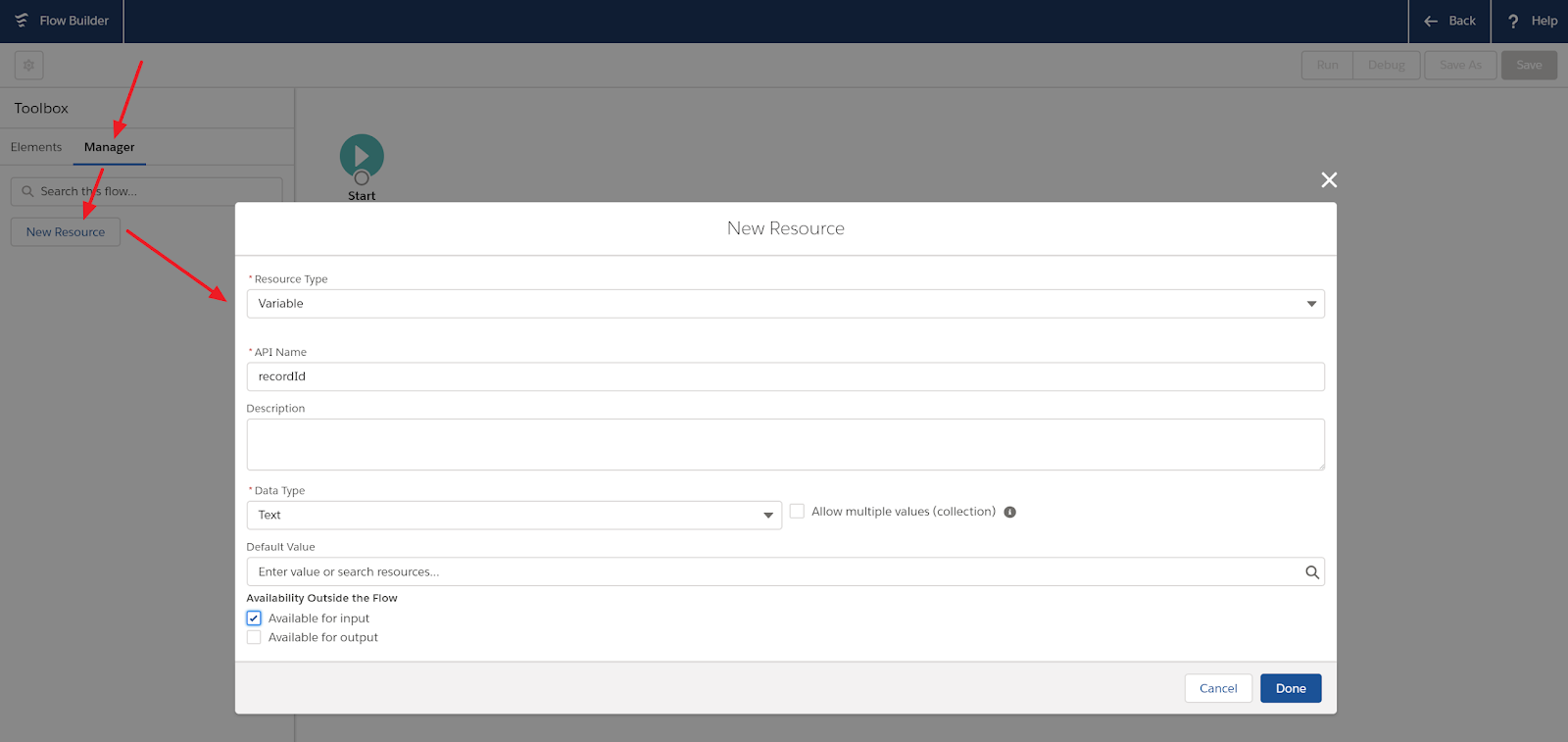
- In the left pane Toolbox, click “Manager” and then the “New Resource” button. Salesforce will prompt you to enter the Resource Type. Select “Variable” from the drop down menu.
- In the New Resource variables declaration box, enter the following values:
- API Name: recordId
- Data Type: Text
- Select “Available for input”
- Click “Done”

- In the Toolbox Elements Tab, click “Screen” and drag it onto your canvas.
- In the Screen Properties section (right pane), give the flow component a Label and API Name (in my example, I use “Show Record ID”).
- In the Screen Components section (left pane), drag the “Display Text” component into the Screen element. Give it an API name. In the text block section, type: “The record ID is: {!recordId}”. Here, {!recordId} references the variable that was passed in at 3.1 above.
- Click Done

- Connect the Start element to the Screen element. Click Save. Salesforce will prompt you to enter:
- Flow Label: type “testShowRecordId”. Salesforce auto-populates the API Name with the same value.
- Type: Screen Flow
- The Flow is created in a deactivated state. To Activate it, from Setup > Flows screen, click the “testShowRecordId” label, then click “Activate”.
- We’ve got our flow! Now we need to add it as an Action Button on an object. You can do this for any object, but in this example, I’ll use the Opportunity record:
- Click Setup > Object Manager.
- Do a Quick Find on “oppo” and select “Opportunity”
- Select “Buttons, Links and Actions”, and then click the “New Action” button
- On the New Action screen, enter the following, and then click save

- Almost done! Now that we have an Action Button created, let’s add it to a page layout. Click “Page Layouts”, select “Opportunity Layout”.
- Select “Mobile & Lightning Actions” from the top banner. The “Show ID” button we just created should be visible.
- Drag “Show ID” down into the “Salesforce Mobile and Lightning Experience Actions” section of the page.
- Save the page layout, and then open an existing Opportunity
- You now have a Show ID button visible. Once you click it, it shows the ID of the record




Tuesday, April 16, 2019
College Not Requried

This blog inspired by a recent article I read on LinkedIn: https://www.linkedin.com/feed/news/no-need-for-a-degree-to-succeed-4392019/
It's becoming increasingly common -- even among large tech companies -- that a 4-year degree is no longer required. This mostly stems from a deficit in candidates applying for jobs at companies that really need skilled talent to work for them. This will become an even bigger problem as "baby boomers" start to age out of the workforce.
As a hiring manager, a 4-year degree largely meant:
(1) your younger self was committed to learning new things. I expect that you are going to still be interested in doing that once you join my team. I need "constant learners" because the world is constantly changing. New tools, new methods, new approaches to getting work done. Be willing and eager to learn, always.
(2) your younger self was flexible, and had the patience to put up with a lot of bullshit that the college programs threw at you: juggling heavy course loads, the craziness and stress of both midterms and finals, dealing with crazy / oddball peers, TAs and professors. You put up with a lot. I hope you'll find it easier, by comparison, here at the office, but I expect your habits of flexibility and patience will continue -- you'll need them here!
(3) you have a portfolio of accomplishments: hopefully, if you haven't kept them in an actual portfolio, you're able to articulate them to me in an interview. If I hear about the great things you've accomplished, I can relate them to the projects I know you're going to encounter here in the business world.
And here's the secret: you DON'T need a college degree for any of those. I love hiring veterans, because their four (or more!) years gave them all of these experiences and more. You know who else impresses the hell out of me? Stay-At-Home-Moms (or Dads!) returning to the work force. Talk about people having their shit together, adept at learning new things, practicing extreme patience -- and willing / able to sacrifice their careers just to nurture and develop their young child!
Have neither a college degree, military service, SAHM/D status to fall back on? That's ok -- but be ready to show me how you spent your recent years: (a) learning new things, (b) being flexible and patient, (c) and most importantly, show me a portfolio of your accomplishments. What personal projects have you been working on in your basement, garage, backyard or down at the local makerspace? What free, online learning programs have you completed? How have you been working to make the world a better place through your volunteer efforts? What small business did you try to jumpstart as an entrepreneur? Tell me about the obstacles you have overcome.
The bottom line is you still have to put in the effort, even if it's not a college degree, military discharge and service records, a healthy, well-adjusted kid, or small-business that you're showing off at the end. You don't need work experience, but you need EXPERIENCE.
Here's what won't cut it: staying in your "comfort zone". Working 30-40 hours a week at that same front-end job you got right out of high school, all while living in your parents basement and spending the bulk of your free time playing video games. If you're in that rut right now, find a way to break free. Start working on an ambitious project, volunteer at a local non-profit, set goals and work toward them, find a mentor, keep a journal and build your portfolio. Demonstrate you are trainable and worth investing in. That's the right stuff and I'd hire you.
Wednesday, February 20, 2019
Another Blog on Setting Up SMTP Email Relay Between Salesforce and Gmail
How do I prevent the "Be careful with this message" warning banner appearing at the top of emails?
How do I remove the "via" in the From address of emails sent from Salesforce?
Emails that my client were sending from Salesforce were being presented to customers with warning banner, warning the customer to be careful with the message, avoid clicking on links, etc. Here's a look at one such email message, when submitted to an internal QA team member: |
| Fig. 1: Email from Salesforce, sent to internal company team member |
Here is another email, when a Case Notification email was sent to an external customer's gmail account.
 |
| Fig. 2: Same email template from Salesforce, sent to external user |
These email conditions occur because the "From" address in the email header is spoofed: the email header says it was sent from a user@companyname.com, but it was actually sent from a email server with a salesforce.com domain name.
To avoid this, the client needed to enable SMTP Email Relay. I've never setup email relay on a Google Apps domain before. I found a couple older (4+ years) blog posts on setting this up (here and here); both got me 95% of the way there. Salesforce has made a few changes since these articles were written, so I decided to post this "revised" blog of how to set up SMTP email relay between Salesforce and G-Suite.
Step 0: No Need to Open a Case with Salesforce Customer Support
Both blogs above indicated that the first step was to open a Case with Salesforce.com and request Email Relay feature enablement. I even found Salesforce Knowledge Article 5793, which seemed to imply this was still required. The current Salesforce documentation, however, indicates that setting up email relay is now a standard feature. (I actually ended up creating a Case with Salesforce, only to have them confirm it was a standard feature, and no longer needed to be enabled for each org on their side first).
Step 1: Setup SMTP Email Relay in G-Suite
Follow these instructions to setup SMTP relay service in G-Suite.
- Login to G-Suite Admin Console: admin.google.com
- From the Admin Console Home Page, go to Apps > G-Suite > Gmail > Advanced Settings (Tip: Scroll down to the bottom of the page to see Advanced Settings)
- On the left side, select top-level organization.
- Scroll to the SMTP relay service setting in the Routing section. Hover over the setting and click Configure. (If the setting is already configured, click Edit or Add Another).
- For a new setting, enter a unique description.
- Set up the following:
- Allowed senders: Only addresses in my domains
- Authentication: Only accept mail from the specified IP addresses
- Reference this Salesforce Knowledge Article describing which Salesforce IP Addresses must be whitelisted. You must add all of the IP addresses that are used for email relay. (Hint: Scroll down to the section labeled "The addresses used for email relay include").
- Check the Enable box for each IP address entered.
- Require SMTP Authentication: unchecked
- Encryption section, Require TLS encryption: checked
- At the bottom, click Save
Step 2: Enable Email Relay in Salesforce
To setup email relay in Salesforce, a Salesforce admin should do the following:
- In Salesforce Quick Find, go to "Email Relays" and select Create Email Relay
- Enter the following Email Relay Properties:
- Host: smtp-relay.gmail.com
- Port: 587
- TLS Setting: Required
- Enable SMTP Auth: leave unchecked
- In Quick Find, go to "Email Domain Filters" and select Create Email Domain Filter
- Enter the following Email Domain Filter Properties:
- Sender Domain: leave at default setting
- Recipient Domain: leave at default setting
- Email Relay: select smtp-relay.gmail.com:587 [TLS Required]
- Active: checked
- In Quick Find, go to "Deliverability". Make sure the following features are unchecked:
- Uncheck "Activate bounce management" (Using email relay with bounce management is tricky; you'll need to implement DKIM signing and enable SMTP Auth. My client did not use the bounce management feature heavily, so we simply disabled it.
- Uncheck "Enable compliance with standard email security mechanisms" (if enabled, these may interfere with the relay of your email messages from Salesforce)
- In Quick Find, go to "Test Deliverability". Follow the instructions to test and verify that your email messages are routing correctly.
- You may want to do another test, by sending an email message from Salesforce.com. Verify that the message sends correctly. You can also log into G-Suite gmail as that user, and you should see the email in your Sent folder.
Friday, November 30, 2018
Resolving "Read All Accounts" Permissions Issue with the "old" Profile Editor
Problem / Issue:
As part of a project to enable Lightning Knowledge for an org, I was tasked with doing some clean-up of various user Profiles in the org. An audit found that the Data Migration profile had access to the Knowledge object, but shouldn't have. When I went to remove these permissions, Salesforce presented an error (see below): I couldn't remove access to the Knowledge object until I first resolve the permission issues on Account Brands and Scorecard Associations.

No problem -- this Data Migration Profile shouldn't have access to either of those objects either, so I thought I'd just go remove them. The trouble is that if you're using the Enhanced Profile Editor, you can't make permission changes to multiple objects.
For example, as soon as I went to make remove access to the Account Brands object, Salesforce presented an error: I couldn't remove those permissions until I first removed permission from the Scorecard Associations object:

Similarly, if I tried to remove permissions from Scorecard Association, I got an error saying I had to first resolve the access permissions on the Account Brands object.
It took me a few cycles to figure out that the problem here is that unlike the original Profile Editor, the Enhanced Profile Editor doesn't allow you to make changes to 2 or more objects at the same time. Each time you make a permission change to an object, Salesforce will validate the change before allowing you to save the change. But I needed to make changes to two different objects, and the Enhanced Profile Editor wouldn't allow me to do that.
The Fix
You need to revert back to the old Profile Editor, since it allows permission changes to multiple objects before a Save operation is committed. To revert back to the old profile editor, go to Setup and in the Quick Find type and select "User Management Settings", then disable the "Enhanced Profile List Views" setting. You can come back and enable this setting after you have made the necessary profile permission changes.
So if you're running into problems with profile editing, keep in mind that the old Profile Editor was kept around for a reason -- there are simply some things you can't do in the new Enhanced Profile Editor mode.
Tuesday, September 4, 2018
Getting to #AwesomeAdmin 2.0

Are you able to easily relate to any of these situations:
I have a meeting next week that I know will be tough. The sales team wants a new way to track their quarterly results, their just not able to articulate exactly what they want. In past meetings, they've quickly gone off track, and I wasn't able to fully capture their need. Or, ...
I'm facing some new challenges within our production org. Our traditional deployment process isn't quite working. We're letting things into production that we really shouldn't, but I'm not sure how to fully address that. Or, ...
Even though we're not using Lightning yet, I think I'd be a better admin if I just knew a little more about lightning components and how to design them. Or, ...
I've just been assigned a new salesforce project that is quite larger than my last one. There are new stakeholders, and it's going to require some development work that will really stretch my modest apex and visualforce skills. I think I can do it, but I'm not really a salesforce developer. I don't want to miss anything.
Or ... [insert your challenge here]
These are all challenges or problems we are likely to stumble upon at some point in our career. As Salesforce Admins, we LOVE solving problems. But we mostly love coming up with creative solutions for OTHER people's problems. Having to come up with solutions for our own personal problems isn't nearly as much fun.
But at the end of the day, the same talents and skills that allow us to create solutions for business leaders and their teams can be used to solve our own personal challenges and problems.
#AwesomeAdmins Turn Challenges Into Professional Development Opportunities
Every challenge you face is a new professional development opportunity. It's an opportunity because it presents you with a fresh, new chance to grow and learn.Each time you tackle one of these challenges, you'll come away with a unique business understanding, newly applied learning, and increased personal skill sets. At the time, they may seem like incrementally small skills, but all those small changes add up over time.
Becoming a better Salesforce Admin simply involves managing your professional development opportunities, one after another. And then another. And then another. There's no shortcut to awesomeness. You get there incrementally, by overcoming each fresh, new personal challenge. By learning and succeeding (or even failing!) with new approaches. Your goal isn't to get a raise or land a big promotion at work. Your goal is to become better at your craft. You accomplish this be facing professional challenges head on, big and small, and growing through them.
Here's the good news: you don't need to go to a week-long salesforce training class to become a better admin (although it can definitely help). You don't need to get a Salesforce Admin certification (although this can help, too!). You don't need to go to Dreamforce, attend a Salesforce User Group meeting, or even spend a lot of extra time out of the office to become a better Salesforce Admin (although many of us enjoy the camaraderie from ALL of these things).
Awesome Admins Fix Problems – One at a Time
So, how do you go about tackling that growing list of professional development opportunities? Really, the same way you tackle any work challenges:- Describe the problem clearly. Give it a name. Write it down. Maybe throw it up on your own personal Kanban board (Trello is GREAT for this). For those challenges above, you might name your challenges: Run a Better Requirements Gathering Meeting, Create a More Robust Deployment Process, Learn How To Build Lightning Components, Tackle Project X
- Brainstorm ways you might address the challenge in a new way. If this is a team problem, then brainstorm with your team. Even if it's a personal challenge, you can reach out to your social networks (Trailblazer Community, local user group, Twitter, etc.) to solicit ideas.
- Got a collection of ideas? Good! Invest some time learning something new about each approaches. Maybe one of the ideas was to tackle this problem using Flows, and another was to use Apex -- neither of which you're strongly familiar with. Dedicate time to learning about both. You don't need to learn EVERYTHING about the approach, just spend 15-30 minutes learning about the approach to help you evaluate if it's a practical choice.
- Decision time: select whichever seems to be the best solution. Commit to trying it.
- Start working through the solution. If the challenge is particularly large, break it up into smaller manageable chunks. In this way, a big challenge becomes many smaller ones. That may seem more intimidating at first, but each is more achievable. As you complete each smaller objective you'll be working toward the larger goal, but also building your accomplishments (and thereby, your confidence), along the way.
- Stuck? Ask for help! It's ok to reach out to your manager, peers, or salesforce ohana to solicit input or advice as your working through the solution. Never feel like you need to go at solving a problem on your own, even if you're the only knowledgeable salesforce resource in your company!
- Assess your results periodically. Reflect. What worked? What did not work? Capture this in writing!
- Do it again. Repeat this cycle, every day, every week, every month.
Invest a bit of team each week to tackle your personal challenges. Your mindset about dealing with them will shift as you take the same disciplined approach you take for all other business challenges. As you make progress, your confidence will grow. Your skill set will grow. You'll be increasing the value you provide to your organization. And you'll be upgrading to a better, improved version of yourself: #AwesomeAdmin 2.0
Tuesday, August 21, 2018
Getting Support for your Salesforce Ideas in the Workplace

Sometimes, it can be a little intimidating being the Salesforce Admin for your company. On a daily basis, you are interacting with professionals and executives at all levels of the organization. They expect BIG THINGS from their investment in Salesforce, and in turn, their investment in you. Your job is to not only ensure your salesforce org runs smoothly, but also to help your sales and service teams be more productive, to help them do their job BETTER.
You’re a particularly devout salesforce administrator, tuning in to webinars, reading blogs, interacting with peers on the Trailhead Community forums, and following your salesforce ohana on Twitter, Facebook and LinkedIn. A steady stream of salesforce-related information enters your brain every day. And every so often, you’ll see something that REALLY excites you!
Perhaps you read about how another Salesforce Admin switched their organization from Classic over to Lightning. Their approach seems fairly straight forward, and one that you could replicate at your own company. Or maybe you saw a really interesting use case for a salesforce community, and you’re convinced that will greatly enhance the customer experience. Or you’ve seen a new feature in Salesforce, like Lead Scoring, which you’re certain will improve the sales user experience and help the company close more deals. Wow -- now you’re really pumped.
But then a big old dose of Monday morning reality settles in. While you know that implementing new approaches can drive innovation and help your organization succeed, you also know that for a lot of people, change is not easy. We humans are highly resistant to change. Ok, maybe not us admins -- we love change, at least three times year, #AmIRight? But the user communities we support are often a bit more reluctant. Bureaucracy, emotions and plain old stubbornness get in the way so easily.
So if you have this great idea to enhance your salesforce org, how do you get the support you need to push it forward? How do you effectively share your idea, build momentum for it, win support from your executive leadership and empower the right people to implement it?
Here are some #MondayMusings for strategies I’ve used to gain support for my ideas. Consider using these techniques when you’re looking to garner support for your salesforce ideas.
Just as a salesperson hones their elevator pitch for a busy prospect, so too do you need to craft a quick pitch to sell your business ideas. You’ve likely heard of the elevator pitch concept already. An elevator pitch is a brief, to the point proposal, something that can be delivered in 15-30 seconds. That’s the time you might have to share with an executive sponsor as you incidentally meet her in the elevator, and travel the elevator banks together to whatever your shared destinations might be. In the time it takes that elevator to move 50 floors or less, you want to be able to delivery your pitch and sufficiently garner their interest so as to encourage a follow-up meeting.
Each unique idea or proposal you have warrants it’s own 15-30 second pitch. The idea itself will almost certainly be more complicated than can be fully conveyed in 30 seconds, but it’s important to tune your pitch to that brief, succinct delivery time.
The pitch isn’t something you mentally whip up in your head during the morning commute. While it should only take a half-minute to deliver, you’ll need to spend a good amount of time working the details behind the pitch BEFORE you deliver it. You must translate your excitement, enthusiasm and interest into a clear, solid business proposal. Don’t skimp on this step. Really think it through. The more prepared you are with it, the more successful you’ll be in the delivery.
What’s in a good pitch?
You may find, through this exercise, that the idea really is too costly, or won’t yield the benefits you originally thought it might. It’s better that YOU make that discovery at this early stage, rather than having someone from your executive team bring you to that realization.
Or the opposite may happen, and you may find yourself more convinced than before that his action is critical for your organization. That conviction will only help you as you present your elevator pitch to the leadership team.
The important thing is to seek out people who can be critical, and are willing to give you open, honest feedback about your idea. You’re likely going to get one shot when you pitch this idea to decision makers, so get some early feedback from your “friendlies” first.
Make sure you’re getting REAL feedback: you want something more honest than “great job, they’ll love it” and more helpful than “this sucks”. Press for the feedback that will help you make the pitch better.
Now here’s the hard part: when you do get the RIGHT feedback, you may not like it very much. You may not like it at all. Some of it might be downright discouraging. Just remember the reason you approached these evaluators in the first place is because you WANTED their input (good and bad) so you could use it to refine your pitch.
It is important to get feedback from several different people. Giving your pitch to 3-5 different people will allow you to identify trends or patterns in the feedback. If one person out of five hates it (but can’t quite tell you why), two people give you some creative suggestions for refining the pitch, and two people give you only minor suggestions for improving it -- maybe you have enough feedback that you can discard or ignore the hater. Or maybe you press that person hard to help explain where you’re losing them in the pitch, why your numbers don’t make sense for the business, or what specifically they don’t like about the idea.
NOTE: For some organizations, it may be politically important to make this Step #2 rather than Step #3. Your boss may not want you going out and “stirring up ideas” before passing them by him first. Use your own discretion. Where I work, I feel comfortable sharing my ideas with a couple different groups before presenting the pitch to my boss. He seems to appreciate that, as well, because it means I’ve already filtered out some of the “noise” (some of my pitches die at step 1 or even step 2, based on the feedback I get).
The approach you take when presenting to your boss will usually vary, depending on the size of the project. For something rather small or benign, but still widely impacting, I’ll bring the 15-30 second pitch in as part of my weekly 1:1 meeting with my boss.
If he’s interested, and wants to go into more detail, I’ll be fully prepared to go into the more detailed action plan (yes, that means I’ve already done some of Step #4 BEFORE doing Step #3; as Edna Mode would say, “Luck favors the prepared”). Sometimes, we might dedicate the entire meeting to that one idea, so if I have a pitch ready, I always present it early in the meeting, not in the last 5 minutes.
If it’s a particularly large endeavor, something that might have cross-platform or team impact, or create a significantly different user experience, I’ll reinforce that by being a bit more formal in my approach. I’ll tell my boss that I’d like to do a formal presentation to him, and potentially other members of the executive team. I’ll request a dedicated meeting where I can pitch the idea and take questions from a broader audience. Invariably, he’ll want to know more right away, so I’ll give the 15-30 second pitch -- but he’ll often stop me with a wave of his hands, and say, “Yep, this is bigger than a breadbox, let’s have on the invite.”
By reinforcing the need for a formal meeting, he’s already groomed to expect this to be a fairly large endeavor that will warrant feedback and input from a larger team. But he also has enough information about the idea that he can start “sowing the seeds” of interest among his peers, when they ask him about the invite they got from his Salesforce Admin.
Ready for some more tough love? Here’s the sad truth: your boss might not like your aidea. Yes, even though you’ve gone through the exercise of creating your pitch, practiced it with a few key evaluators, and even worked out your “Next Steps / Action Plan”, your efforts might be stopped right here at the pitch to your manager.
Keep in mind that your boss has a broader awareness of what is happening across the organization than you do. She is exposed to different circles of information and influence. She is also presented with a fair amount of sensible and practical ideas from other members on her team every week. It’s her job to filter those ideas and determine which are worthy of bubbling up to higher management or decision makers.
If you do get a “No” or even a “Not at This Time”, probe to understand why. Your data is sound, you have the facts -- find out what are the more pressing business needs impacting the organization right now that have greater urgency and greater ROI than this proposal. It’s important to make it not seem as if you are challenging your bosses decision. Rather, you are probing to understand the goals, needs and current priorities of the company, so you can better align your ideas toward them.
Ideas are nothing if you can’t execute them. Most likely, you’re going to need the support and resources of other individuals to move your plan forward. The larger the scope and impact of your project, the greater the amount of support and approvals you’re going to need from other teams or individuals. Be ready for that.
I list this as the 4th step, but in reality, I’ve fleshed out the outline for my “next steps” action plan before the meeting with my boss. I know the action plan will go through additional levels of validation and refinement AFTER the project is approved, but I want to make it easy to get started. I’ll detail as many of the subsequent required actions or approvals that I can reasonably think of, and jot them down. At this stage, I’m not putting a lot of details into the plan (no sizing of effort or setting of dates and deadlines). Otherwise, I’m being as specific as I can in naming individuals or teams, and what specifically is needed from them.
I can’t tell you that using this approach with every idea has resulted in gaining support for the idea in the workplace. But each time I’ve followed this practice, I’ve gained new insight into the needs of the business. I’ve practiced and improved my communication and project management skills. I’ve benefited from the networking and collaboration in pitching my idea with peers. Even if the work I’ve put into this doesn’t result in my GREAT IDEA being implemented, I’ve come out at the other end of the process as a better Salesforce Administrator.
You’re a particularly devout salesforce administrator, tuning in to webinars, reading blogs, interacting with peers on the Trailhead Community forums, and following your salesforce ohana on Twitter, Facebook and LinkedIn. A steady stream of salesforce-related information enters your brain every day. And every so often, you’ll see something that REALLY excites you!
Perhaps you read about how another Salesforce Admin switched their organization from Classic over to Lightning. Their approach seems fairly straight forward, and one that you could replicate at your own company. Or maybe you saw a really interesting use case for a salesforce community, and you’re convinced that will greatly enhance the customer experience. Or you’ve seen a new feature in Salesforce, like Lead Scoring, which you’re certain will improve the sales user experience and help the company close more deals. Wow -- now you’re really pumped.
But then a big old dose of Monday morning reality settles in. While you know that implementing new approaches can drive innovation and help your organization succeed, you also know that for a lot of people, change is not easy. We humans are highly resistant to change. Ok, maybe not us admins -- we love change, at least three times year, #AmIRight? But the user communities we support are often a bit more reluctant. Bureaucracy, emotions and plain old stubbornness get in the way so easily.
So if you have this great idea to enhance your salesforce org, how do you get the support you need to push it forward? How do you effectively share your idea, build momentum for it, win support from your executive leadership and empower the right people to implement it?
Here are some #MondayMusings for strategies I’ve used to gain support for my ideas. Consider using these techniques when you’re looking to garner support for your salesforce ideas.
Step #1: You’re a Salesman, Craft Your Elevator Pitch
I’m a believer that all of us are salespeople. That may not be our job title, but you’re involved in selling every single day. As a Salesforce Admin, you are already selling your expertise and skill set to your organization every day. A significant amount of your time is spent persuading, influencing and convincing others to make an exchange of some sort.Just as a salesperson hones their elevator pitch for a busy prospect, so too do you need to craft a quick pitch to sell your business ideas. You’ve likely heard of the elevator pitch concept already. An elevator pitch is a brief, to the point proposal, something that can be delivered in 15-30 seconds. That’s the time you might have to share with an executive sponsor as you incidentally meet her in the elevator, and travel the elevator banks together to whatever your shared destinations might be. In the time it takes that elevator to move 50 floors or less, you want to be able to delivery your pitch and sufficiently garner their interest so as to encourage a follow-up meeting.
Each unique idea or proposal you have warrants it’s own 15-30 second pitch. The idea itself will almost certainly be more complicated than can be fully conveyed in 30 seconds, but it’s important to tune your pitch to that brief, succinct delivery time.
The pitch isn’t something you mentally whip up in your head during the morning commute. While it should only take a half-minute to deliver, you’ll need to spend a good amount of time working the details behind the pitch BEFORE you deliver it. You must translate your excitement, enthusiasm and interest into a clear, solid business proposal. Don’t skimp on this step. Really think it through. The more prepared you are with it, the more successful you’ll be in the delivery.
What’s in a good pitch?
- Be brief and to the point. 15-30 seconds max.
- Clearly articulate the problem you’re solving or the process you are improving
- Explain WHAT the problem or issue is and HOW your approach addresses it
- Present facts, including the approximate costs (resources, time, budget), as well as the business costs of NOT implementing the solution
- Keep assumptions to a minimum; don’t clutter the pitch with confusing “admin-only” terminology. I take out a lot of Salesforce phrases in my pitches (Einstein becomes AI, Lightning becomes “improve UI”, etc.). You need to talk the same language as your audience, which is often very different from that of your salesforce ohana.
- Be ready to go into additional details, but only if requested (usually at a later date or during a follow-up meeting).
You may find, through this exercise, that the idea really is too costly, or won’t yield the benefits you originally thought it might. It’s better that YOU make that discovery at this early stage, rather than having someone from your executive team bring you to that realization.
Or the opposite may happen, and you may find yourself more convinced than before that his action is critical for your organization. That conviction will only help you as you present your elevator pitch to the leadership team.
Step #2: Get Feedback Early
You’re smart. I mean it -- really smart! That’s why you’re a Salesforce Admin! But it doesn’t matter how smart you are, no great idea will come together in an echo chamber of your own brain. After you’ve crafted your pitch, perhaps even rehearsed it a couple times in front of the mirror or during the morning commute, present it to some trusted colleagues -- or perhaps some of your salesforce ohana. Talk it up with peers at your next UG meeting, or sync up with friends on #SalesforceSaturday. Here’s an open invitation to pitch your elevator proposal to me; I’m happy to give you some open, honest feedback (reach out to me on LinkedIn or Twitter to exchange contact details). Don’t be shy about pitching it to a frequent naysayer in your circle, someone who isn’t as big a salesforce enthusiast as you are. You will hone your negotiating and presentation skills as you win these personality types over!The important thing is to seek out people who can be critical, and are willing to give you open, honest feedback about your idea. You’re likely going to get one shot when you pitch this idea to decision makers, so get some early feedback from your “friendlies” first.
Make sure you’re getting REAL feedback: you want something more honest than “great job, they’ll love it” and more helpful than “this sucks”. Press for the feedback that will help you make the pitch better.
Now here’s the hard part: when you do get the RIGHT feedback, you may not like it very much. You may not like it at all. Some of it might be downright discouraging. Just remember the reason you approached these evaluators in the first place is because you WANTED their input (good and bad) so you could use it to refine your pitch.
It is important to get feedback from several different people. Giving your pitch to 3-5 different people will allow you to identify trends or patterns in the feedback. If one person out of five hates it (but can’t quite tell you why), two people give you some creative suggestions for refining the pitch, and two people give you only minor suggestions for improving it -- maybe you have enough feedback that you can discard or ignore the hater. Or maybe you press that person hard to help explain where you’re losing them in the pitch, why your numbers don’t make sense for the business, or what specifically they don’t like about the idea.
Step #3: Share It With Your Boss
You’ve crafted your pitch. You’ve shared it with a few resources. That has allowed you to refine the pitch and make it better. Now it’s time to share it with your boss.NOTE: For some organizations, it may be politically important to make this Step #2 rather than Step #3. Your boss may not want you going out and “stirring up ideas” before passing them by him first. Use your own discretion. Where I work, I feel comfortable sharing my ideas with a couple different groups before presenting the pitch to my boss. He seems to appreciate that, as well, because it means I’ve already filtered out some of the “noise” (some of my pitches die at step 1 or even step 2, based on the feedback I get).
The approach you take when presenting to your boss will usually vary, depending on the size of the project. For something rather small or benign, but still widely impacting, I’ll bring the 15-30 second pitch in as part of my weekly 1:1 meeting with my boss.
(You ARE having a weekly 1:1 meeting with your boss, aren’t you? If you aren’t, get that recurring meeting on the books right away!).
If he’s interested, and wants to go into more detail, I’ll be fully prepared to go into the more detailed action plan (yes, that means I’ve already done some of Step #4 BEFORE doing Step #3; as Edna Mode would say, “Luck favors the prepared”). Sometimes, we might dedicate the entire meeting to that one idea, so if I have a pitch ready, I always present it early in the meeting, not in the last 5 minutes.
If it’s a particularly large endeavor, something that might have cross-platform or team impact, or create a significantly different user experience, I’ll reinforce that by being a bit more formal in my approach. I’ll tell my boss that I’d like to do a formal presentation to him, and potentially other members of the executive team. I’ll request a dedicated meeting where I can pitch the idea and take questions from a broader audience. Invariably, he’ll want to know more right away, so I’ll give the 15-30 second pitch -- but he’ll often stop me with a wave of his hands, and say, “Yep, this is bigger than a breadbox, let’s have
By reinforcing the need for a formal meeting, he’s already groomed to expect this to be a fairly large endeavor that will warrant feedback and input from a larger team. But he also has enough information about the idea that he can start “sowing the seeds” of interest among his peers, when they ask him about the invite they got from his Salesforce Admin.
Ready for some more tough love? Here’s the sad truth: your boss might not like your aidea. Yes, even though you’ve gone through the exercise of creating your pitch, practiced it with a few key evaluators, and even worked out your “Next Steps / Action Plan”, your efforts might be stopped right here at the pitch to your manager.
Keep in mind that your boss has a broader awareness of what is happening across the organization than you do. She is exposed to different circles of information and influence. She is also presented with a fair amount of sensible and practical ideas from other members on her team every week. It’s her job to filter those ideas and determine which are worthy of bubbling up to higher management or decision makers.
If you do get a “No” or even a “Not at This Time”, probe to understand why. Your data is sound, you have the facts -- find out what are the more pressing business needs impacting the organization right now that have greater urgency and greater ROI than this proposal. It’s important to make it not seem as if you are challenging your bosses decision. Rather, you are probing to understand the goals, needs and current priorities of the company, so you can better align your ideas toward them.
Step #4: Prepare Your “What’s Next?” Action Plan
One of my recent bosses gave every member of the team an 8.5” x 11” framed poster of a light bulb with the words, “What’s Next?” on it. It was a reminder, he told us, that wanted us to never be resting on our laurels, to always be looking toward the next problem that needed to be solved. That was two bosses ago, but I still have that picture hanging in my office. It’s become a personal mantra.Ideas are nothing if you can’t execute them. Most likely, you’re going to need the support and resources of other individuals to move your plan forward. The larger the scope and impact of your project, the greater the amount of support and approvals you’re going to need from other teams or individuals. Be ready for that.
I list this as the 4th step, but in reality, I’ve fleshed out the outline for my “next steps” action plan before the meeting with my boss. I know the action plan will go through additional levels of validation and refinement AFTER the project is approved, but I want to make it easy to get started. I’ll detail as many of the subsequent required actions or approvals that I can reasonably think of, and jot them down. At this stage, I’m not putting a lot of details into the plan (no sizing of effort or setting of dates and deadlines). Otherwise, I’m being as specific as I can in naming individuals or teams, and what specifically is needed from them.
I can’t tell you that using this approach with every idea has resulted in gaining support for the idea in the workplace. But each time I’ve followed this practice, I’ve gained new insight into the needs of the business. I’ve practiced and improved my communication and project management skills. I’ve benefited from the networking and collaboration in pitching my idea with peers. Even if the work I’ve put into this doesn’t result in my GREAT IDEA being implemented, I’ve come out at the other end of the process as a better Salesforce Administrator.
Tuesday, August 7, 2018
What Happens When You Give a Salesforce Profile Permissions to No Apps?
In our current project, we're integrating Salesforce with a backend, user registration database for a mobile app. After users download the mobile app and register their accounts, their basic profile information (first name, last name, username, birthdate, etc.) is captured in a database. My service team wants these users captured in Salesforce as contact records.
One of our agile teams have implemented the database, and is pushing the data into Salesforce using REST API call-outs.
For the initial proof of concept, we gave them a Salesforce user account configured with a System Administrator profile. I know, however, that several team members now have the username and password for this integration user. It's time to move that user account to a new profile, and start locking it down -- so that it can only do what I need it to do: insert new registered users, and update Contact records (in case a user changes any of their information in the mobile app).
There are a number of settings I know I'm going to want to set -- like preventing the password from expiring for this data migration user. I'll also want to set profile so that users can have API access only -- no ability to login via the standard salesforce login pages. There are probably a bunch of other settings I'll want to make, too. I figured the best way to start was to look at the profile, and review it's configurations top to bottom.

The first config setting to go through was Assigned Apps. Now I know that this profile is going to be eventually locked down so that it can only access salesforce via the API -- but what happens if some future admin removes that setting? If users do somehow get access to salesforce via the standard login page, I want their actions to be highly restricted (this org may contain sensitive information; and I want to make sure the profile can only access the things it needs to access).
But what happens when you give a salesforce profile permission to NO apps? I didn't know -- and a quick Google didn't turn up much either. So, I config'd it up.
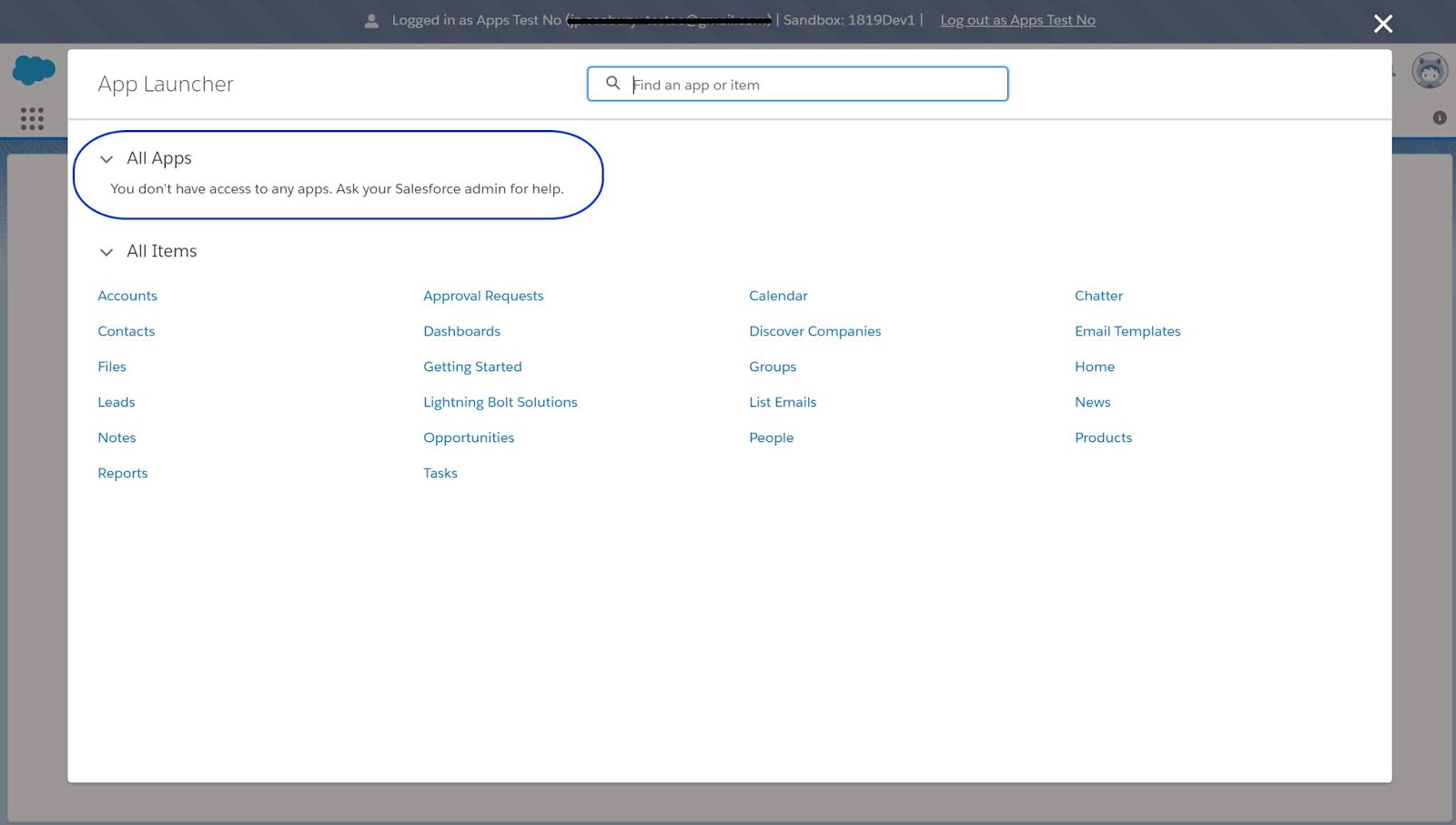
As it turns out, it's not possible to give a profile permission to NO apps. You have to select at least one. So I gave my Data Migration profile permission to the App Launcher only. That had the desired result: clicking the app launcher menu showed no available apps for the user to select from. That's just want I want.

Now to whip through the other config settings.
One of our agile teams have implemented the database, and is pushing the data into Salesforce using REST API call-outs.
For the initial proof of concept, we gave them a Salesforce user account configured with a System Administrator profile. I know, however, that several team members now have the username and password for this integration user. It's time to move that user account to a new profile, and start locking it down -- so that it can only do what I need it to do: insert new registered users, and update Contact records (in case a user changes any of their information in the mobile app).
There are a number of settings I know I'm going to want to set -- like preventing the password from expiring for this data migration user. I'll also want to set profile so that users can have API access only -- no ability to login via the standard salesforce login pages. There are probably a bunch of other settings I'll want to make, too. I figured the best way to start was to look at the profile, and review it's configurations top to bottom.

The first config setting to go through was Assigned Apps. Now I know that this profile is going to be eventually locked down so that it can only access salesforce via the API -- but what happens if some future admin removes that setting? If users do somehow get access to salesforce via the standard login page, I want their actions to be highly restricted (this org may contain sensitive information; and I want to make sure the profile can only access the things it needs to access).
But what happens when you give a salesforce profile permission to NO apps? I didn't know -- and a quick Google didn't turn up much either. So, I config'd it up.
As it turns out, it's not possible to give a profile permission to NO apps. You have to select at least one. So I gave my Data Migration profile permission to the App Launcher only. That had the desired result: clicking the app launcher menu showed no available apps for the user to select from. That's just want I want.
Now to whip through the other config settings.
Thursday, March 8, 2018
Messaging with AI Driven Chatbots
Chatbots are a class of intelligent, conversational software agents activated by natural language input.A chatbot is a service that you interact with via a chat interface. Texting on a console or speaking directly ala "Alexa" or "Siri" are common examples. The chatbot service can serve any number of functions (informational, practical, or even fun) and it can live in any major chat product. The chatbot itself is powered by rules and sometimes artificial intelligence.
An intelligent chatbot is one that learns conversations all the time to improve its performance.
The modules in a chatbot including user modeling modules and the natural language understanding module which can perform better by learning continuously.
Machine learning (ML) algorithms and human supervisors enable the learning of the chatbot. ML techniques like reinforcement learning supervised, and unsupervised techniques can be leveraged to ensure the AI chatbot becomes a good learner.
The ability to learn is a key factor in creating an intelligent chatbot. With neural networks and deep learning, chatbots can become good learners. Learning is paramount to ensure that the chatbot recognizes patterns in data it receives and responds to user requests in the most appropriate way.
How do we determine if a chatbot is intelligent?
Chatbots adhere to a three-step process for realizing their goal. This sense-think-act cycle defines the intelligence of a chatbot. An AI chatbot goes through this cycle to make progress towards pre-defined goals autonomously.

For an AI chatbot, sensing the environment where it resides becomes a prerequisite for getting the information required to perform a task. The chatbot finds it easy to listen to what the user says than make sense what is being conveyed by the user.
Examples of Chatbots
Here are a couple of examples:
- Weather bot: Get the weather whenever you ask.
- Grocery bot: Help me pick out and order groceries for the week.
- News bot: Ask it to tell you when ever something interesting happens.
- Life advice bot: I’ll tell it my problems and it helps me think of solutions.
- Personal finance bot: It helps me manage my money better.
- Scheduling bot: Get me a meeting with someone on the Messenger team at Facebook.
- A bot that’s your friend: In China there is a bot called Xiaoice, built by Microsoft, that over 20 million people talk to.
Chatbots possibilities in Healthcare

- Virtual assistance for Care Teams
- What is my patient caseload toady?
- Did any patients cancel appointments today?
- Who is the cardiologist on call tonight?
- Did my paycheck arrive yet?
- Pull the lab results for Mr. Smith Jones.
- Schedule a follow up appointment with Dr. Dre.
- What is my outstanding balance?
- Explain this claim i just received.
- What is the status of my claim?
- Is the doctor's office open on Fridays?
- Can my heart medication be taken with aspirin?
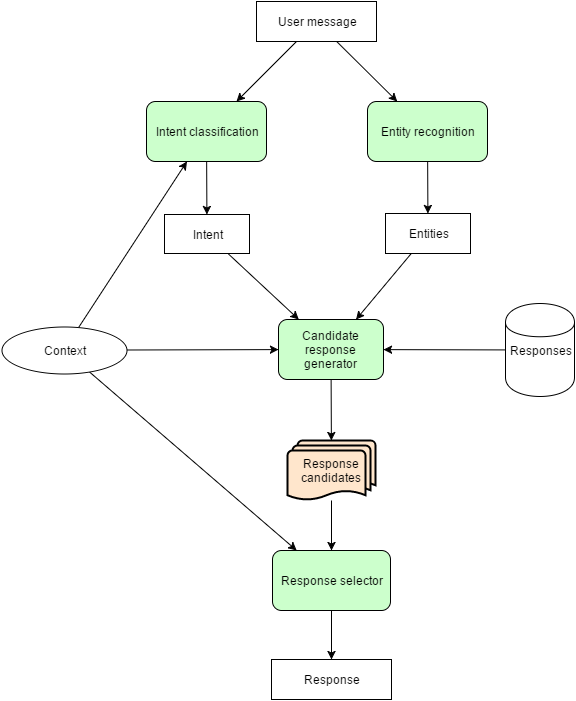
Chatbot Architecture
There are two types of chatbots, one functions based on a set of rules, and the other more advanced version uses machine learning.
Rules-Based Chatbot:
This bot is very very limited. It can only respond to very specific commands. If you say the wrong thing, it doesn’t know what you mean. This bot is only as smart as it is programmed to be.
Machine Learning Chatbot:
This bot utilizes massive amounts of collected data and intelligent processing to provide responses. You don’t have to be as specific as you might with a rules-based chatbot; it understands natural language, as well as commands. This bot continuously gets smarter as it learns from conversations it has with people.
 |

Platforms
- https://chatbotsjournal.com/25-chatbot-platforms-a-comparative-table-aeefc932eaff
- https://chatfuel.com/
- https://dialogflow.com/
Links
- Chatbot Architecture by Pavel Surmenok, Medium
- How to Make an Intelligent Chatbot, Maruti TechLabs

Tuesday, November 25, 2014
New Job, First Day Butterflies
 |
| Image Source: http://lentzy.deviantart.com/art/Butterflies-in-my-stomach-53534780 |
Today was my first day on my new job. And can I tell you something? There are butterflies in my stomach. I've had them flitting around there all last week, and they are still there today. They are the same butterflies I felt "as a kid", before every swim practice or meet, before a piano recital, or even today, before talking in front of a large audience.
A wise mentor, Amber Rae, once wrote, "Go where there is fear. Growth and freedom lie on the other side."
New job. New team. New tools and processes. New experience. There is a little fear there, but yes, excitement, too. And I can see the freedom, and growth beyond.
Today, I spent time trying to figure out just exactly what my new job is. It's complicated by the fact that I'm the only remote member of my team. I work at a remote office. All the other team members are at corporate headquarters, 340 miles away. (In the same situation? Here's some recommended reading: Scott Hanselman's Ways to Make Remote Working Work).
It's further complicated by the fact that there really isn't a formal orientation or "onboarding" process (I'm fixing that, by the way, building one as I go -- so I can hand it off to the next "new hire" who comes after me). My new boss told me, "Drink from the fire hose. Just listen and learn as much as possible the first 30 days. There's plenty of time to make an impact later. For now, get a lay of the land, work to understand how things get done. Get access to various systems. Get a sense of which meetings are important to be in, which ones are optional or should be skipped entirely. Call me when you need me."
A colleague outside my department, who works at the same location, just hired some one new. She commiserated with me, and admitted there is no real orientation process in her department either. "The best thing to do is to make a list of names and just meet with people individually, to learn what they do and get their backgrounds."
So that's what I've lined up for my next next CHQ visit: a series of 1:1 interviews with various members of the team, as well as the groups we support.
While I plan to keep the "flow" informal, I have a list of questions that I hope to weave into the interview. I built the list after reading +Dan Forbes' "33 Questions for Analyzing Your Business" Blog post.
1.) What is your role/job description? What do you do? What did you do before joining this team? What excites you? What do you like about this job?
2.) From your view, what is my role? How will we interact day-to-day?
3.) What is our mission? Who are our "customers"? How well do they think we do our job? Do we have a system to measure our customer's satisfaction?
4.) How is our performance / productivity measured (as a team? Individually)? What does success look like?
5.) What systems or tools do you use? Do I need them? How do I request access to them?
6.) How is our business changing? What was this team / mission / process like 2-3 years ago vs. today? How do you think it will look 1-2 years out?
7.) What are you working on right now? What does your project board or product / service roadmap look like (for the systems you touch) in 3-months, 6-months, 1-year, 2-years?
8.) What are you worried or anxious about? What keeps you awake at night? What help do you need to fix it?
What would you add to that list?
PS - I shared this same post over in the Google+ Leadership: Lead With Giants community. It's one of my favorite communities on Google+ (540 members, all leadership-minded, readily sharing their wisdom and advice). They are an excellent support group, and provided some very good feedback on this topic. If you have a Google+ account and would like to be part of this community, check out the link above!
Saturday, December 3, 2011
Configure - Price - Quote (CPQ) Solutions
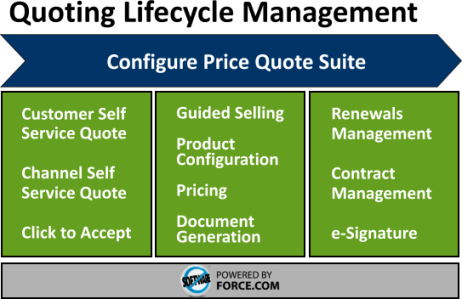 |
| Image: Apttus CPQ Suite |
The Sales Cloud application by Salesforce.com provides all
of the basic elements for small and medium-sized businesses to generate price
books and build sales quotes. But what
about enterprise-sized organizations or even smaller companies with very
complex product configurations? For
these businesses, the standard price book, product and quote tools in
Salesforce.com may not be sufficient.
These companies must generally turn to a Configure-Price-Quote (CPQ)
solution.
What’s In a CPQ Tool?
CPQ solutions vary by vendor, but generally include the
following features:
Product Catalog: In a
CPQ tool, Products and/or service offerings are loaded into a product catalog,
which stores product information in a structured and consistent way: product
name or service name, description, SKU, pricing information and pricing history. Some CPQ solutions also allow product
managers to upload data sheets, pictures and or video clips. Product catalogs can become very complex
tools, allowing organizations to define a nested catalog hierarchy,
relationships between products, product code translations for backend billing
systems, access / visibility rights, and more.
As a Salesforce.com Administrator, you’ll want to carefully review how
the CPQ product catalog integrates with Salesforce.com Products and Pricebooks. Both are critical areas if you want to take
full advantage of Salesforce Opportunity and Quote management features. The
best solutions advise users on related products, provide price comparison
services, and integrate directly with enterprise resource planning (ERP)
systems.
Product Configurator:
You want your sales team selling, not getting mired down in the complex
array of currently available product bundles and promotional offers. Product configurators are tools that the
Sales team use to customize bundles of product offerings accurately and
quickly. The best CPQ solutions feature
configurators that hide the complexity of your service bundle and product
offerings. Rules management features allow
product managers to define product relationships and bundling rules, which
ensure deals are built and priced correctly.
Needs Analysis / Guided Selling: Advanced CPQ solutions feature tools that guide
the ustomer, partner or sales user to
see related products / offerings, see automatic discounts or promotions they
may be eligible for. It allows them to
compare similar product offerings side by side, or alerts them to current
promotions.
Quotes / Proposals Generator: When you start descending into your CPQ
vendor selection process, you’ll find that most CPQ vendors have a stand alone
solution – which allows for all product configuration, pricing, proposals,
approvals and quote management to be done in their platform – a full SFA
solution. Optionally, they may also
provide some integration with the CRM platform of your choosing. Rich quoting tools will feature extensions,
like selectable cover letters, product details, a “first bill” snapshot (for
subscription models), terms & conditions, electronic signature integration
(DocuSign, eSign, TurboSignature). They
may also include workflow rules to automate the approval process, if needed.
When Do You Need CPQ?
If you answer yes to one or more of these questions, chances
are you need a CPQ solution:
- Our current configurations and price rules are scattered
across multiple documents – and finding them is slowing your sales team down
- Our Sales team submit orders with invalid configurations
or incompatible products; correcting these is costly
- Orders are submitted with incorrect pricing for the
selected configuration
- Our Sales team frequently submit orders using expired /
discontinued promos or products
- The process of rolling out a new promotion is extremely complex,
time-consuming and prone-to-error
- Our product configurations / bundles are so complex, we
can’t allow customers to order products over the web
CPQ Vendors
(Salesforce.com Certified)
Looking to learn more about CPQ solutions? The following vendors have CPQ solutions that
integrate to some level with Salesforce.com:
- Apttus
- FPX
Other CPQ Vendors
- CRMantra
Subscribe to:
Comments (Atom)